

There is no password
The sign-in screen holds only three things: Continue with Google, Continue with Apple, and Continue with Email. pensiv keeps no password of its own, so there is no place inside the app to change a password either. Protecting the account rests on the settings of your Google or Apple account, and two-factor authentication turned on there applies to pensiv sign-in as it is. Continue with Email opens your default browser. If you have not verified the address yet, the app stays on the Verify your email screen. Click the link in your inbox, come back, and press I’ve verified. If the mail does not arrive there is Resend email, which locks for a few seconds once you press it.Signing out of this device
Sign Out is in the Danger Zone at the bottom of settings → Profile. As its description says, it ends the session on this device only. There is no place in the app to see sign-ins left on other devices as a list or to end them all at once, so if you borrowed a device, press it there before you leave. If the token has expired and cannot be revived, the app shows Your session expired and signs you out on its own.When you step away
Turn on Obfuscate screen in settings → System and the app covers the screen with a blur whenever it loses focus. It keeps your manuscript from being visible at the next table when you get up for a moment at a cafe. Reset cache, further down the same tab, clears the local session and project cache built up on this device. Your sign-in information stays, and the databases of projects with cloud sync off are not touched either.Deleting your account
Click Delete on the Delete Account row in the Danger Zone and a confirmation dialog appears. Both have to be filled in before the button opens.- Type the email address you signed up with, exactly as it is
- Check I understand this action cannot be reversed
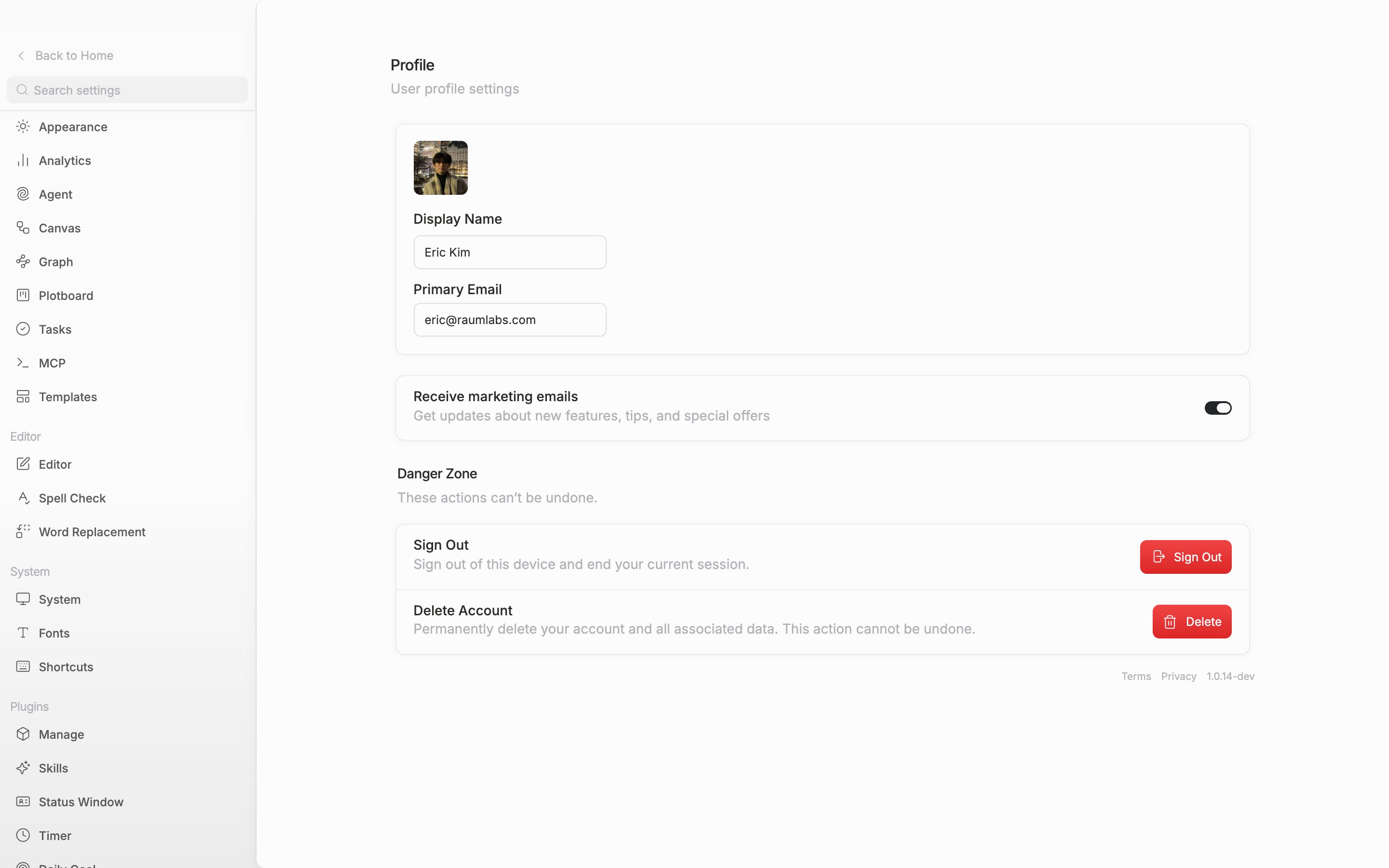
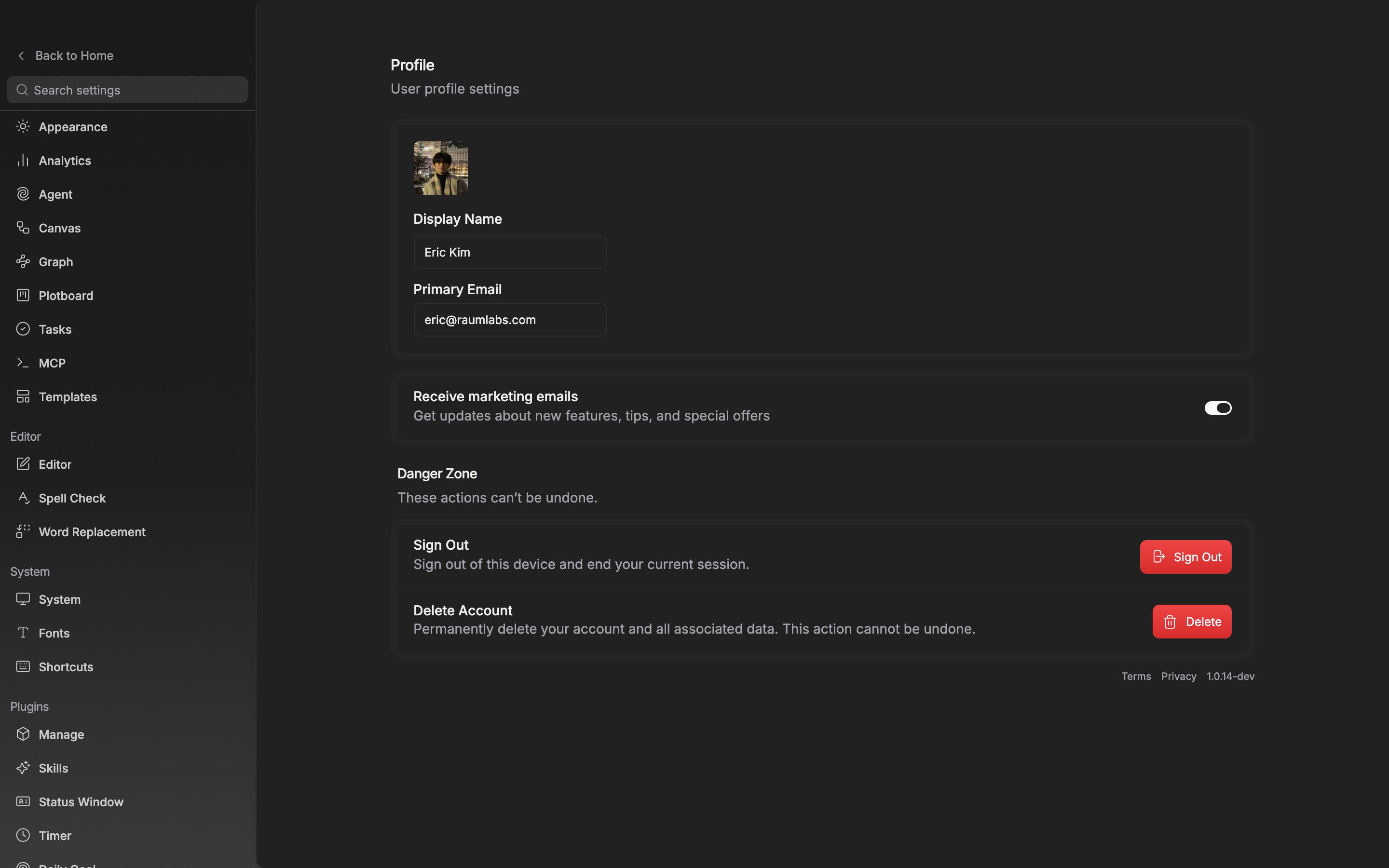
Sign Out and Delete Account sit together in the Danger Zone at the bottom of the Profile tab.
The Terms and Privacy links at the very end of the Profile screen open in your browser.