This is the first screen you get when you open a project. The tab is labeled “Home”. The sidebar has no separate entry that leads here. To come back while you are looking at another file, run “Go to Project Home” from the command palette. Closing the last tab also turns that spot into the home screen.

The greeting and the create cards

The greeting at the top changes with the time of day. Before noon it reads “Good morning”, before six in the evening “Good afternoon”, and after that “Good evening”. The four cards below it, New Document · New Sheet · New Plotboard · New Canvas, are create buttons. Press one and an untitled file appears at the end of the top level of the file tree and opens straight away. Folders are not among these cards, so make them from the more button next to a section name in the sidebar.
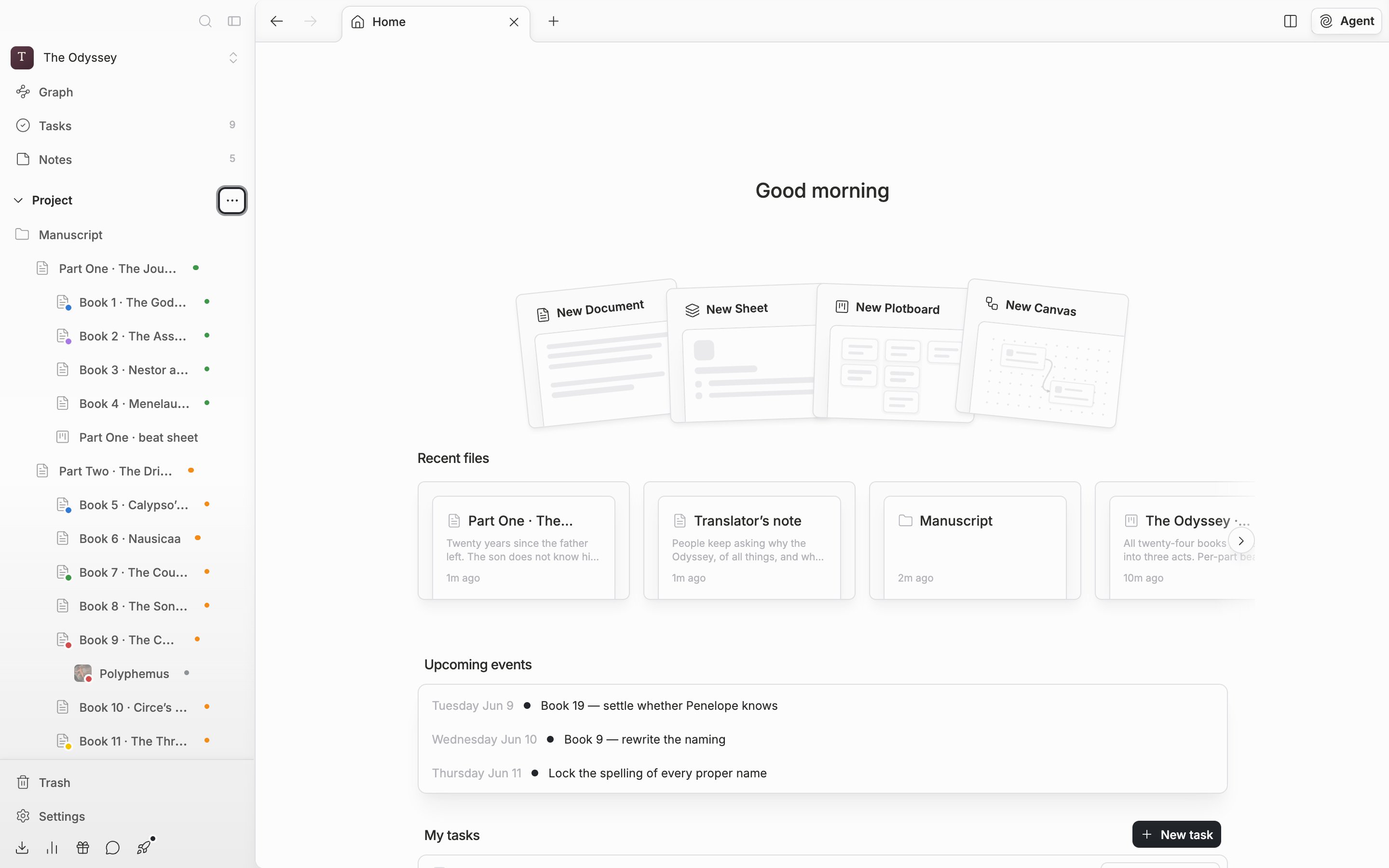
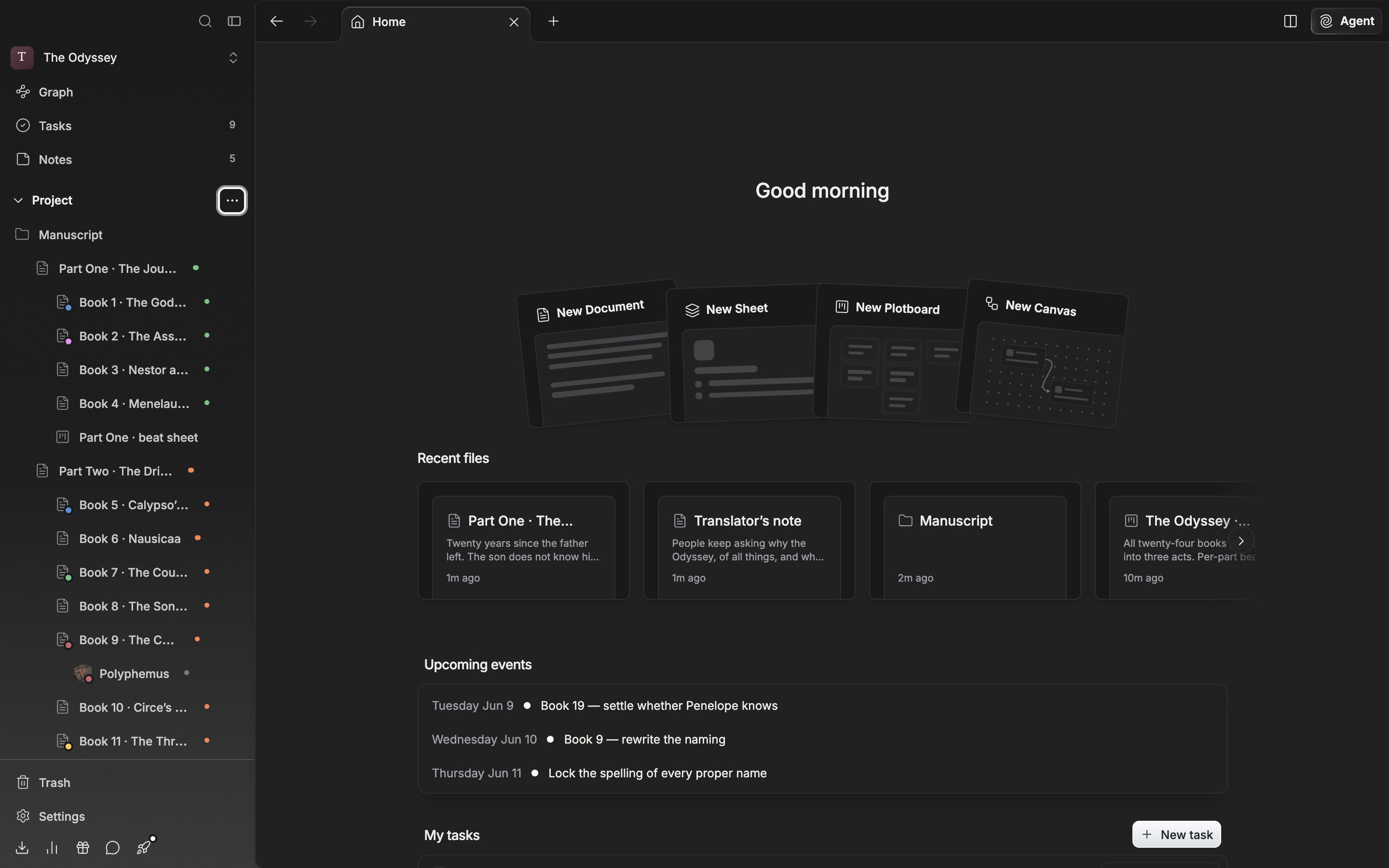
The upper part of the project home screen. One line of greeting and the four cards New Document, New Sheet, New Plotboard, and New Canvas fanned out, with the first cards of the Recent files row visible below them.

The four cards under the greeting are the create buttons.

Recent files

Cards are laid out in the order you opened them. If there are fewer than ten, recently edited files fill the remaining slots. If there is not a single one, the row itself does not appear. The list is built when the screen opens. The record of what you opened stays on the device, so the order looks different on another device.

Upcoming events and My tasks

Upcoming events carries up to three tasks that have a start date or a due date, earliest first. Finished tasks drop out. If there are none, it reads “No upcoming tasks scheduled.” My tasks shows up to five tasks you have not finished. Tasks with a date come first, the rest in order of most recently edited. The checkbox on the left marks one complete on the spot. If a file is attached to the task, the button on the right opens that file straight away. Press New task at the top right to add one more task to this project.