

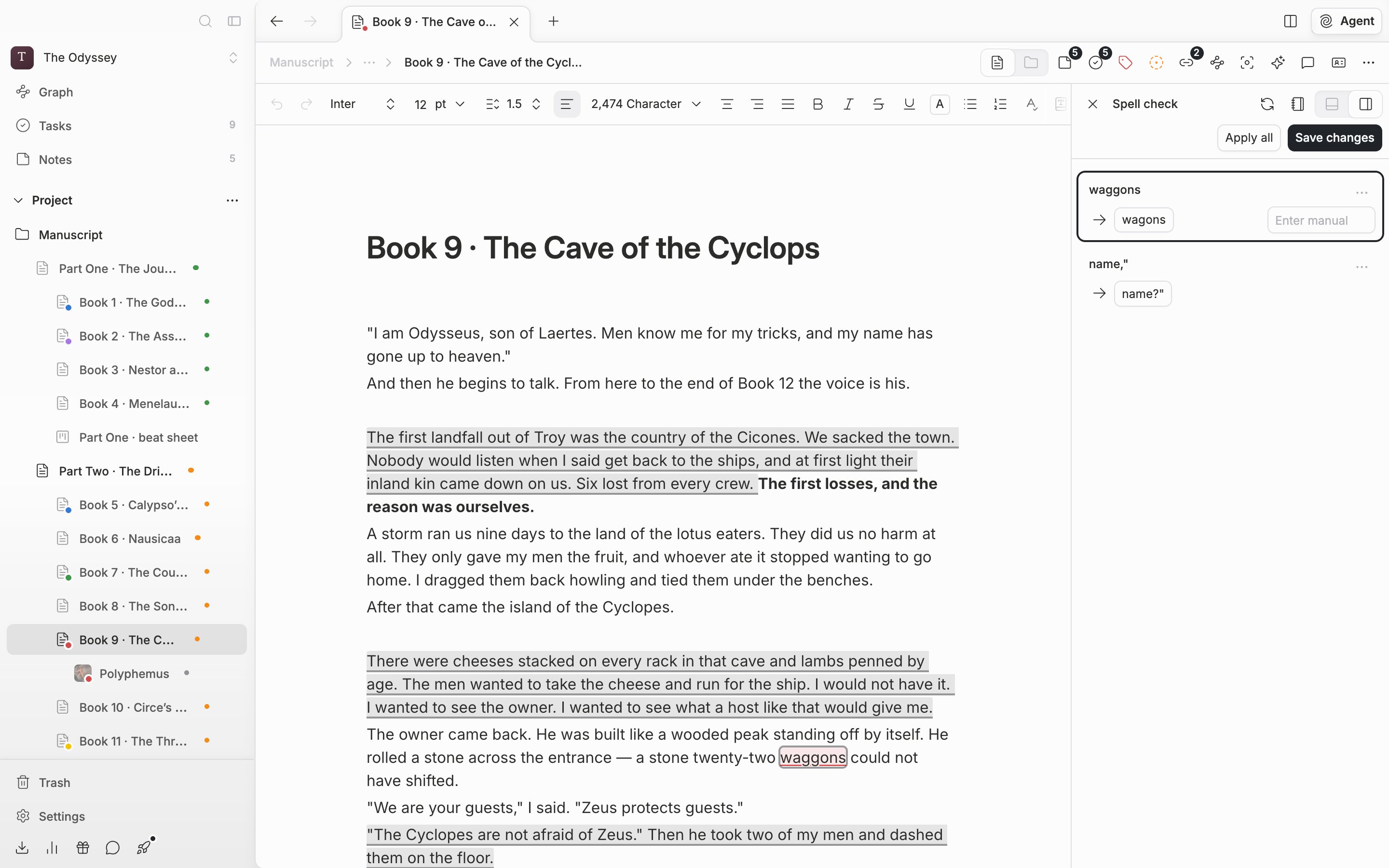
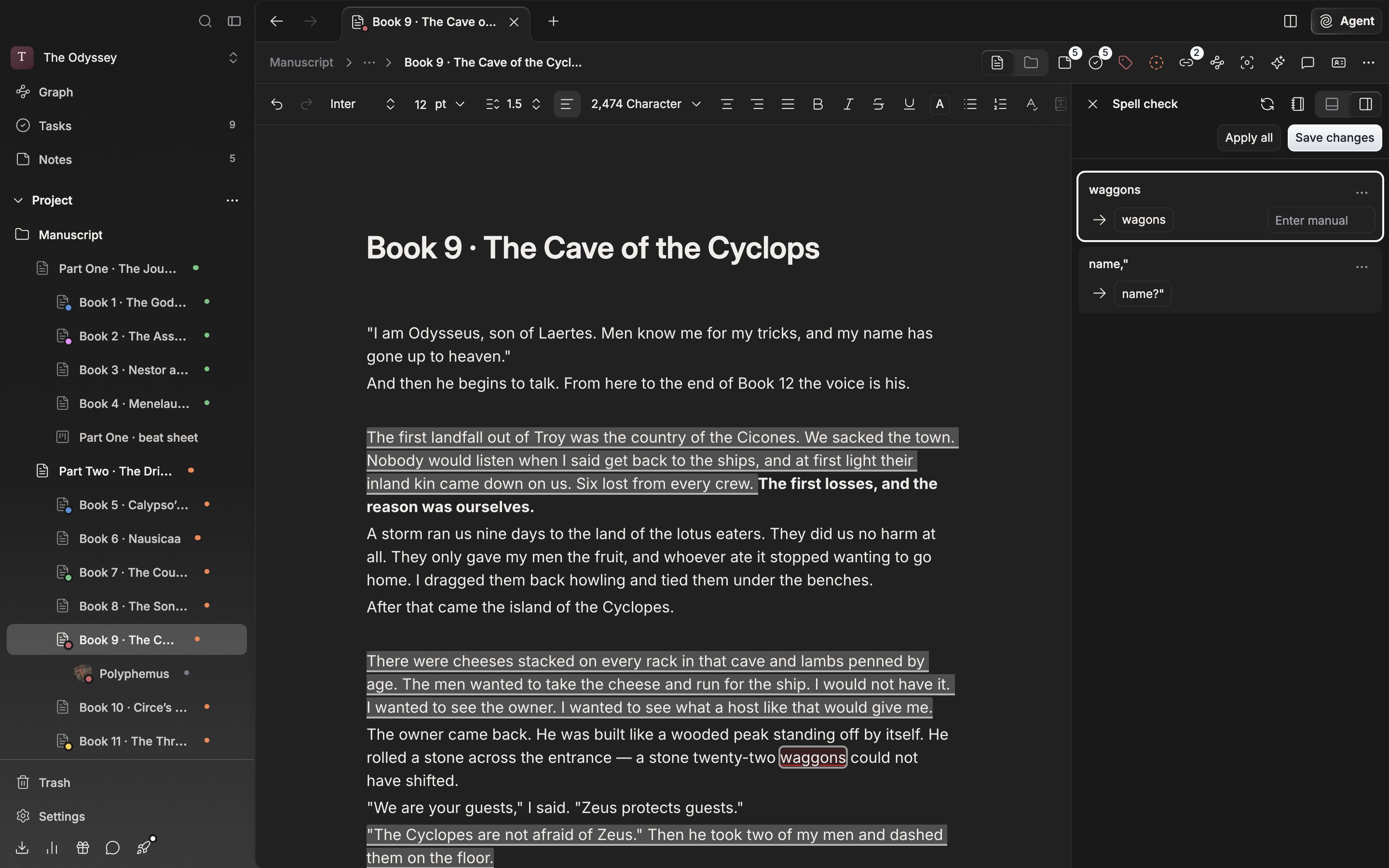
The spell check panel. Each card sets the flagged word and the suggestion side by side.
Taking up a suggestion
Press a suggestion on a card and the body changes on the spot; press it once more and it goes back. To use a different word, write in the Enter manual field that appears when you press the card. It reaches the body as you type.- The up and down arrows move between cards, and Enter switches between applying and reverting.
- Shift+Enter is Apply all, or Reset when everything is already applied.
- Cmd(Ctrl)+Enter is Save changes.
Choosing a checker
The checker picker appears only when the app language is Korean; in English the built-in checker is the only one. In Korean, the bottom row of the panel switches checkers. Built-in checker works on every plan, and 바른한글 (구 부산대 맞춤법 검사기) is for paid plans only. 바른한글 gives the reason each item was flagged, and long explanations open with Show more. With 바른한글 selected, a Rule strictness row appears in the settings alongside it. Strict also catches loanwords with a native equivalent and translationese, which can feel like too much in creative writing. Drop to Relaxed and it looks only at spelling, spacing, and grammar.Putting names into the dictionary
Choose Add to dictionary from the three dots at the right of a card and that word stops being flagged from the next check on. Forms with a Korean particle attached drop out with it: put in “루베르크” and “루베르크를” or “루베르크에서는” pass too. The list is edited on the Spell Check screen in settings. The Dictionary button at the top right of the panel takes you straight there. Add Words takes several at once separated by commas, and rows can be dragged to reorder or deleted.The dictionary is stored on your account. Without logging in it says “Please log in to add words to dictionary”.