

Making a document
Press the More button at the far right of the Project row in the sidebar and pick New Document.Cmd/Ctrl + N does the same thing.
A new document goes right below the file selected in the tree, or at the top inside the folder if a folder is selected. If nothing is selected, it attaches to the end of the tree. Once it is made, the editor opens right away.
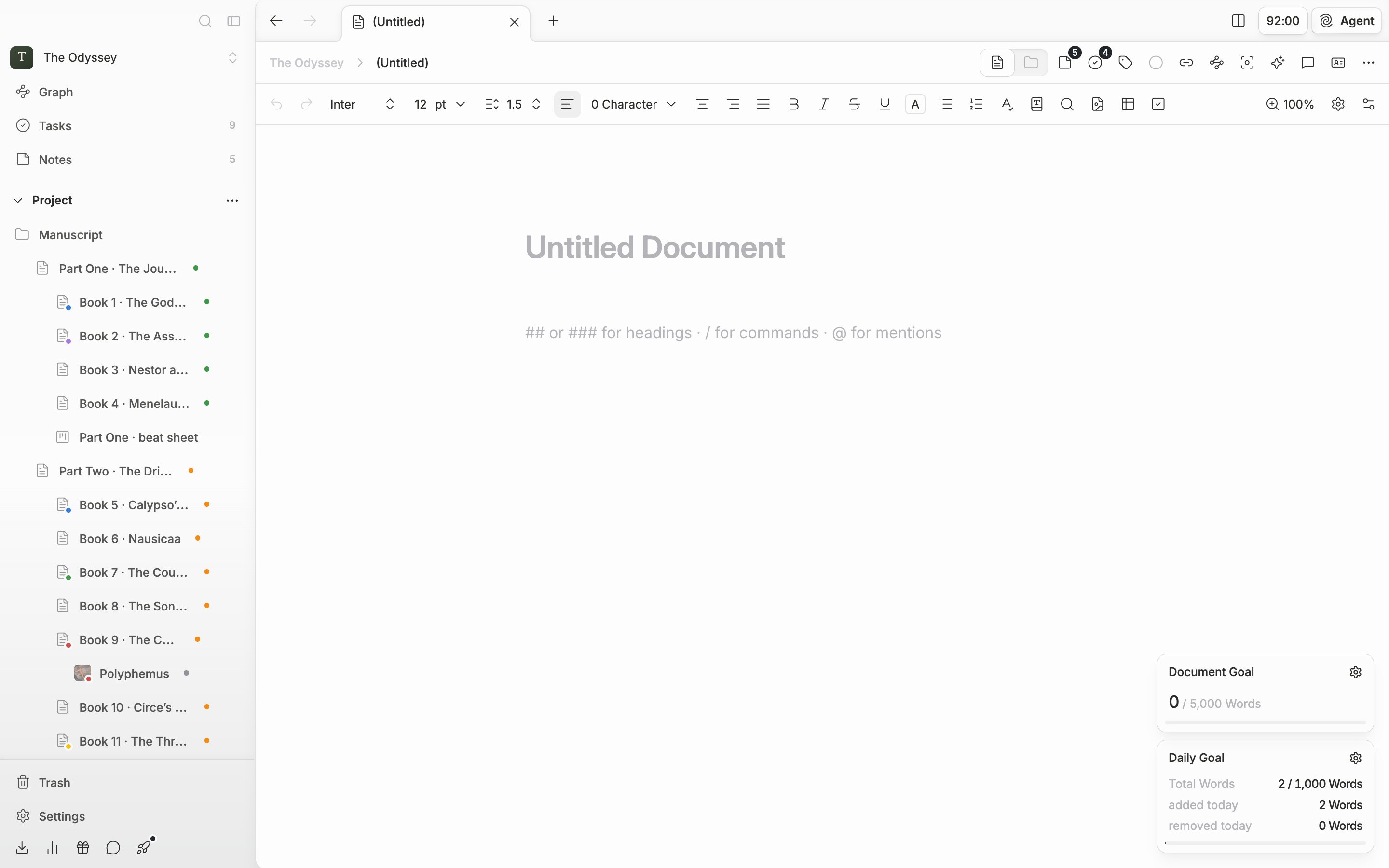
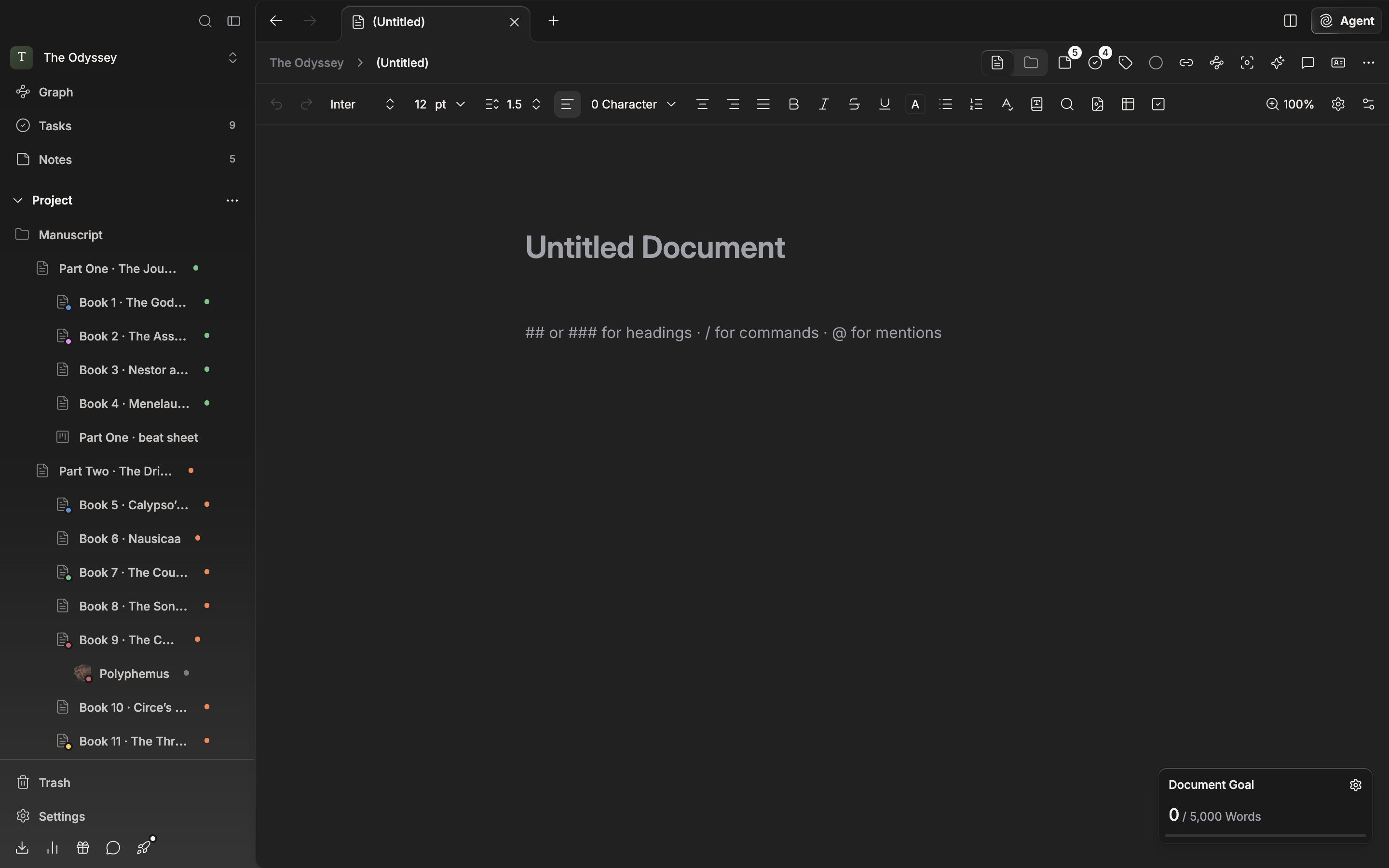
Make a new document and this blank screen opens right away.
Title and body
The top field is the title. While it is empty, “Untitled Document” sits there faintly. The title takes several lines, so pressing Enter does not drop you into the body. Press the down or right arrow, or click the body. The title you type follows through to the file name in the sidebar. An empty body paragraph carries the hint ”## or ### for headings · / for commands · @ for mentions”. Type## and a space and it becomes a subheading. / opens the command menu, and @ opens the mention that pulls in another file. All three can be turned off in the editor settings.
The count in the toolbar is a character count that includes spaces, and it rises live.
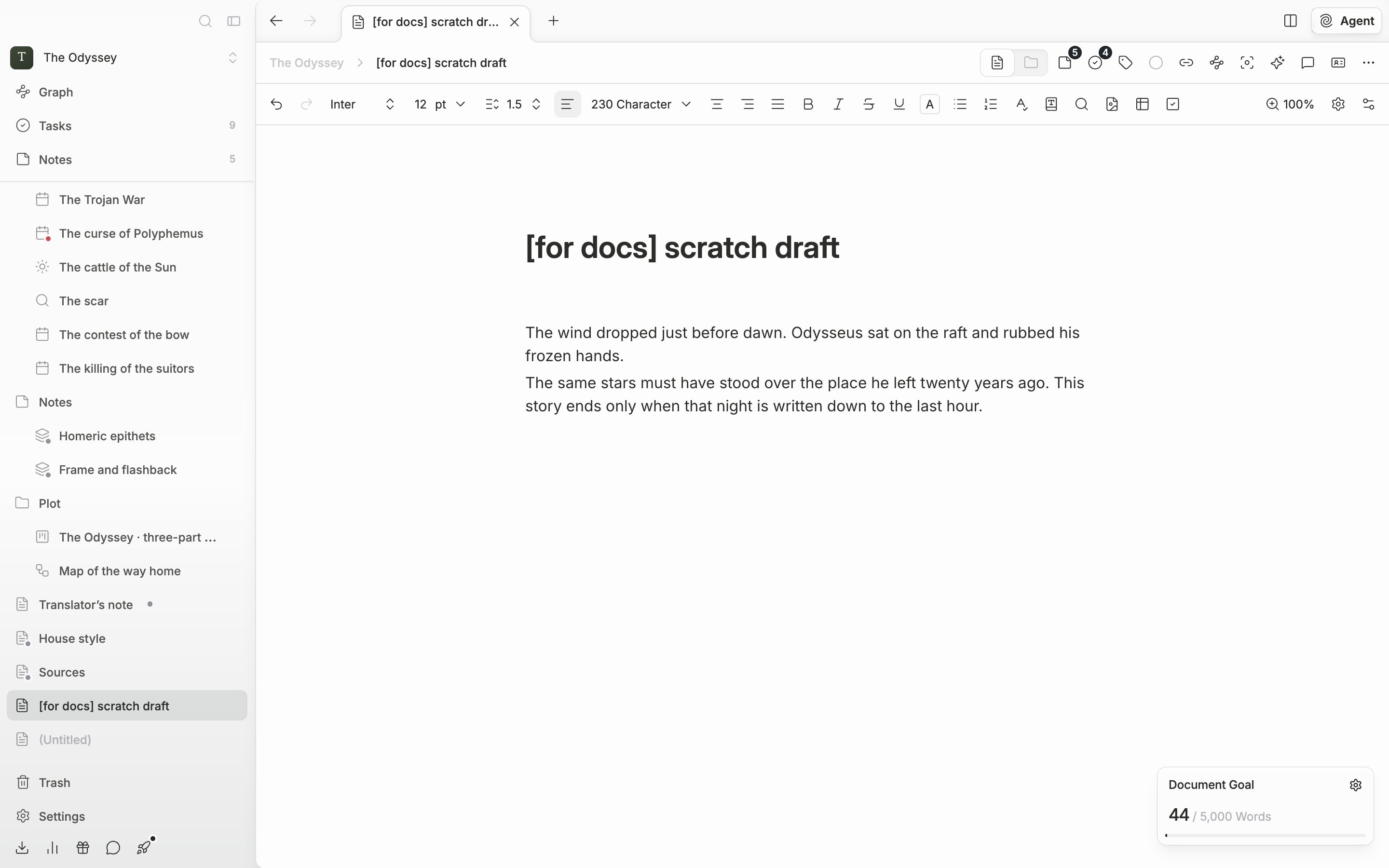
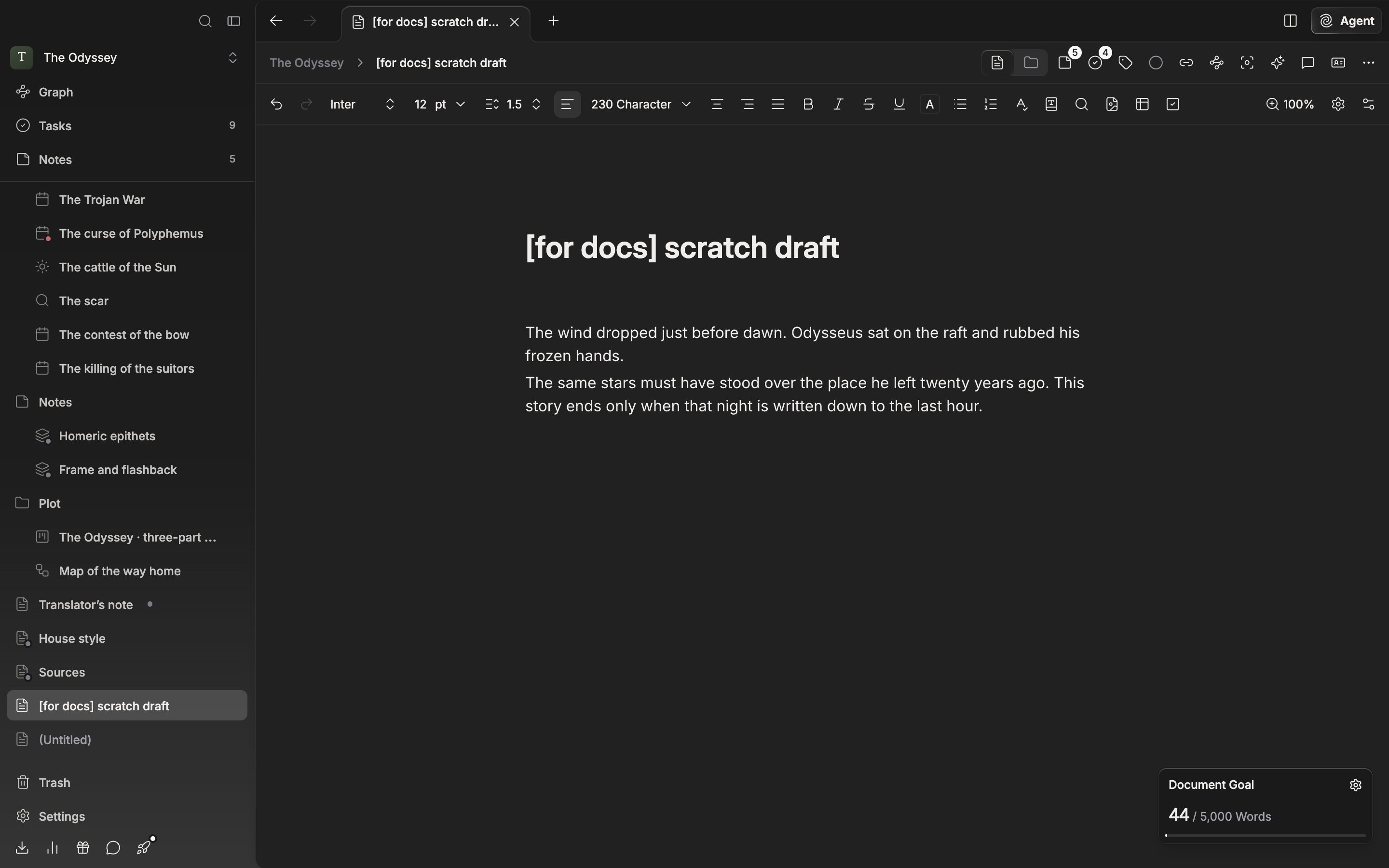
Write the title and the file name in the sidebar changes with it.
There is no save button
About half a second after your hands stop, the title and the body save on their own. Moving to another tab or closing the window still carries the last character over. The only thing to look after separately is the points you want to go back to. Versions that pile up on their own are kept once every 10 minutes, and only when more than 200 characters have changed. At a passage you really want to return to, pressCmd/Ctrl + S. A “Document saved” notice appears and that spot is pinned as a version. You view and restore the versions you have piled up from Document history, inside More at the right of the document header.