You have made a document, a character sheet, and a plotboard, one each. Now tie the three together so you can cross from the manuscript to the character details, and from the character to the scene.

Calling files with @ inside the manuscript

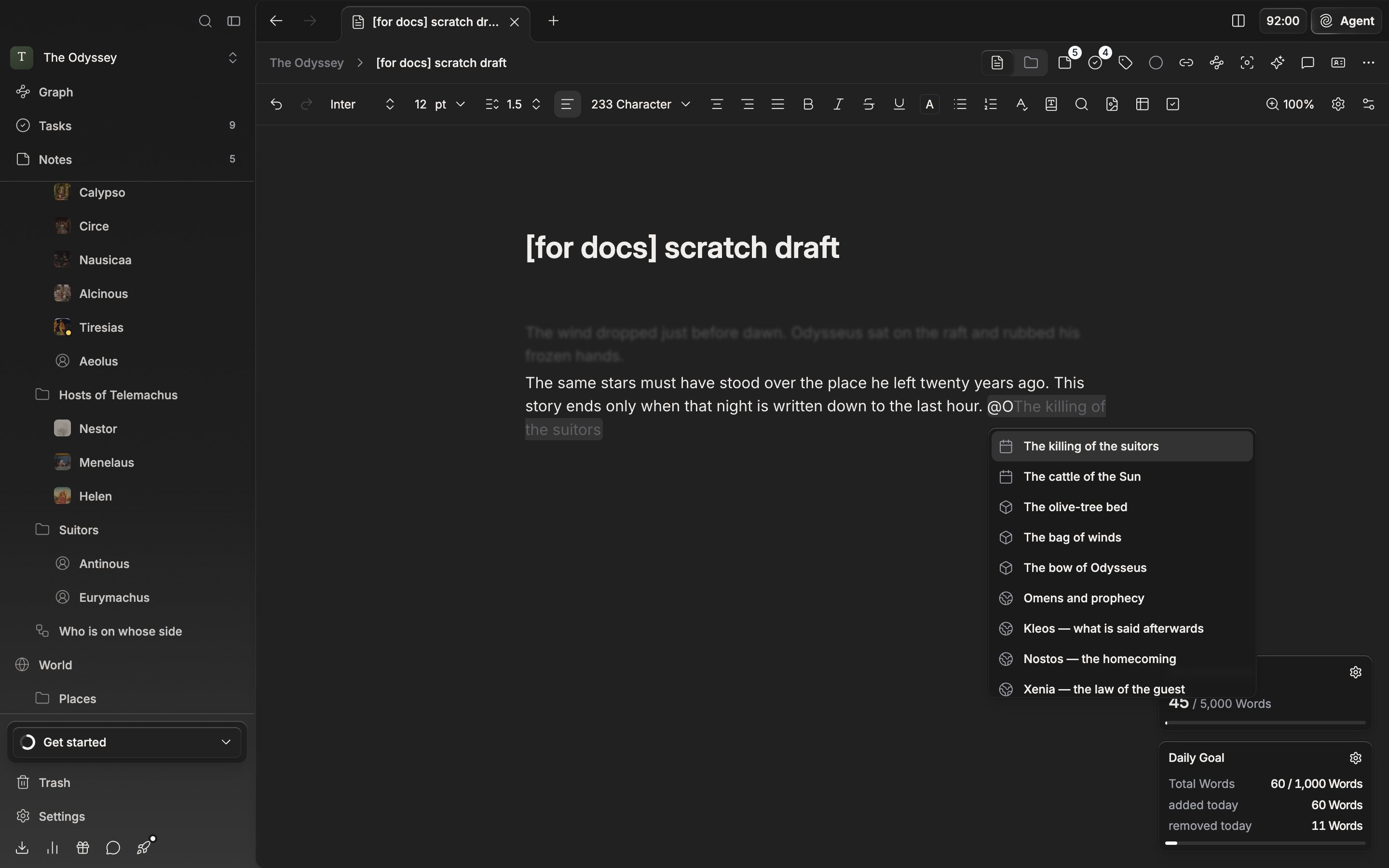
Open a document and type @ in the body. When the file search popup comes up, write a few letters of the character name, pick with the arrow keys, and press Enter to plant the mention. If the name does not exist yet, a Create "name" sheet entry follows under “Create new” at the bottom of the list, so you can make it and link it from where you are writing. The moment you put in a mention, a relationship forms between the two files. Delete it and the relationship goes with it. Click a mention and you go to that file; Cmd+click (Ctrl+click on Windows) opens it beside you in split view. @ works the same way in the body of a sheet. Only the plotboard goes about it differently. Click inside a part card to enter edit state and the “Mentions” field opens. You pick documents and sheets there and attach them.
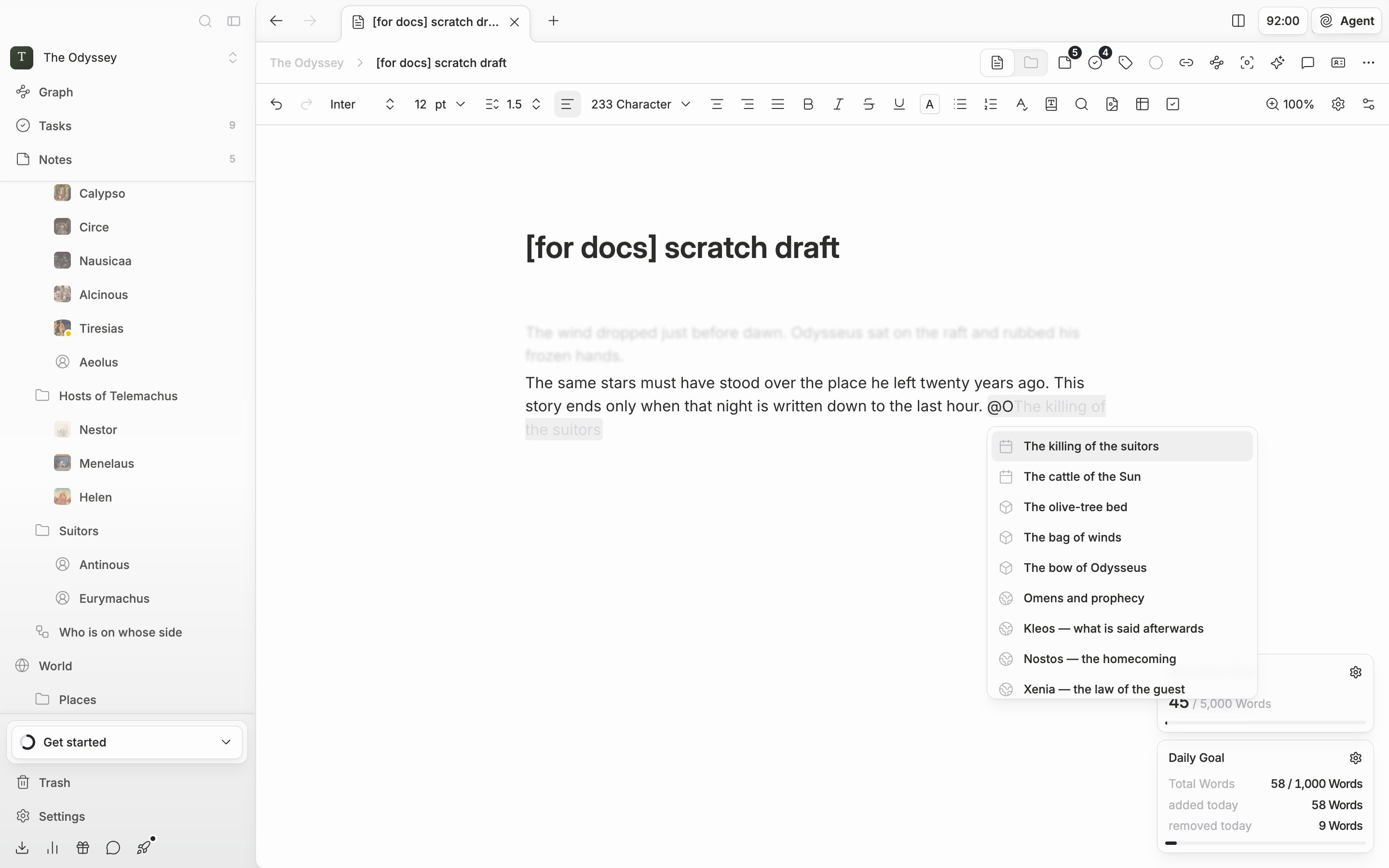
@ has been typed in the body so the file search popup is open, showing the sheet list narrowed by the character name together with the “Create new” group below it.

Type @ in the body and you find a file in the project and link it right there.

Open a character sheet and press “View backlinks” in the header, and the files that mention this sheet come up divided into “Documents”, “Sheets”, and “Plots”. Below them, “Links from this note” is the reverse — the links this file has made. The number on the button is how many are attached. Press an entry and you go to that file. If the button is not there, turn on “Backlinks” from “Customize” in the header.

Seeing the whole thing in the graph

Press “Graph” in the sidebar and the project’s links spread out across one screen. Use the “Open graph” button in the document header and it attaches beside the manuscript in split view. Put the mouse on a node and only the nodes joined to it brighten while the rest sink back. It shows which character is crowded into which scenes and which side is empty. Click a node and you move to that file. If there are many nodes, you can turn file types off in the filter in the header.