

Due tomorrow reminders
Open settings with Cmd(Ctrl)+, and go to the “Tasks” tab in the top group of the left list. Turn on “Due tomorrow reminders” and a notification arrives the day before the deadline. In “Reminder time” below, type the hour and minute and choose AM or PM. The initial value is 9:00 AM. It saves when you press Enter or leave the field. Turn the toggle off and the time fields lock along with it. At the set time, one notification appears for each incomplete task due tomorrow. The same task notifies only once a day. Click the notification and that task’s screen opens. It works in the desktop app only.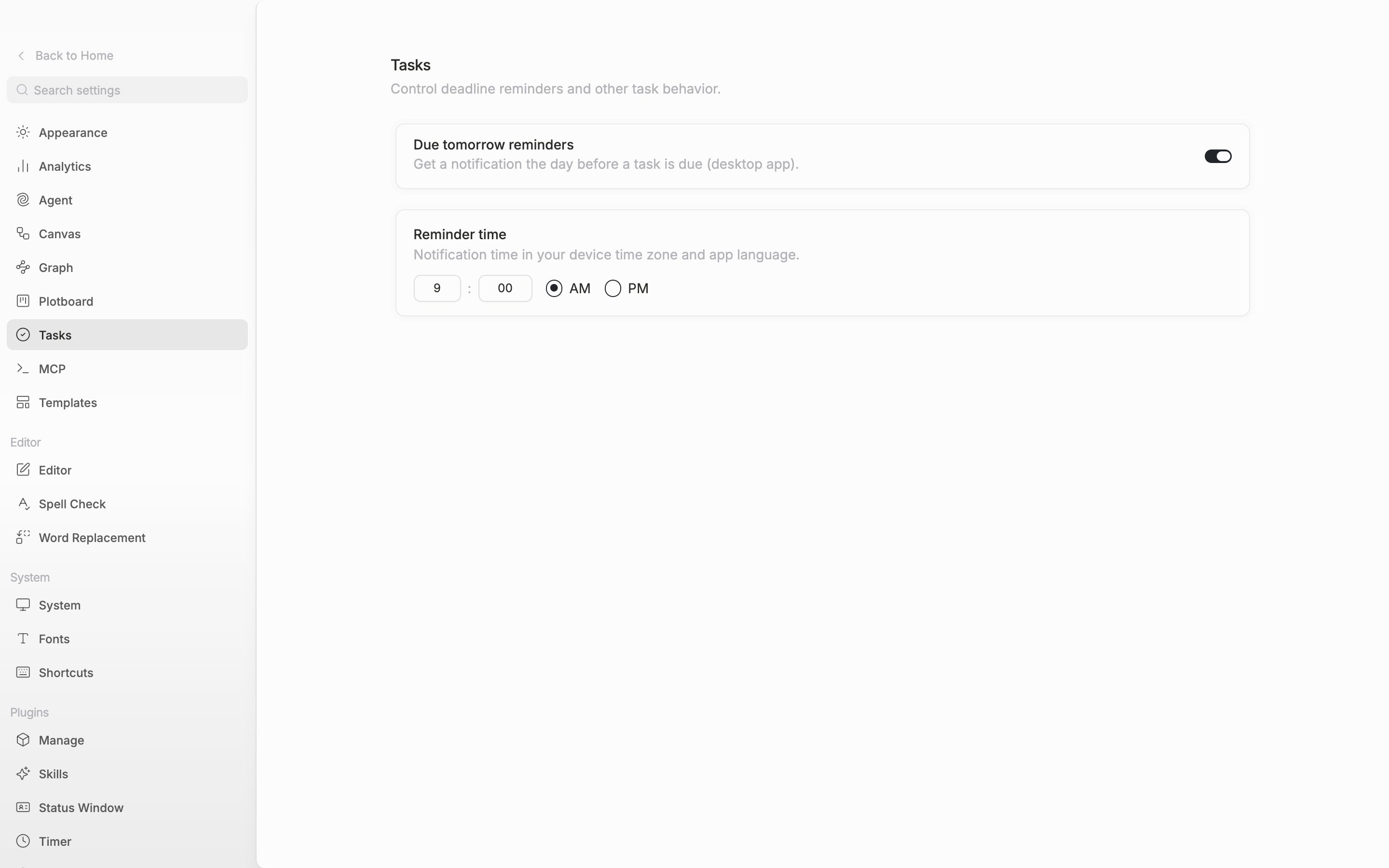
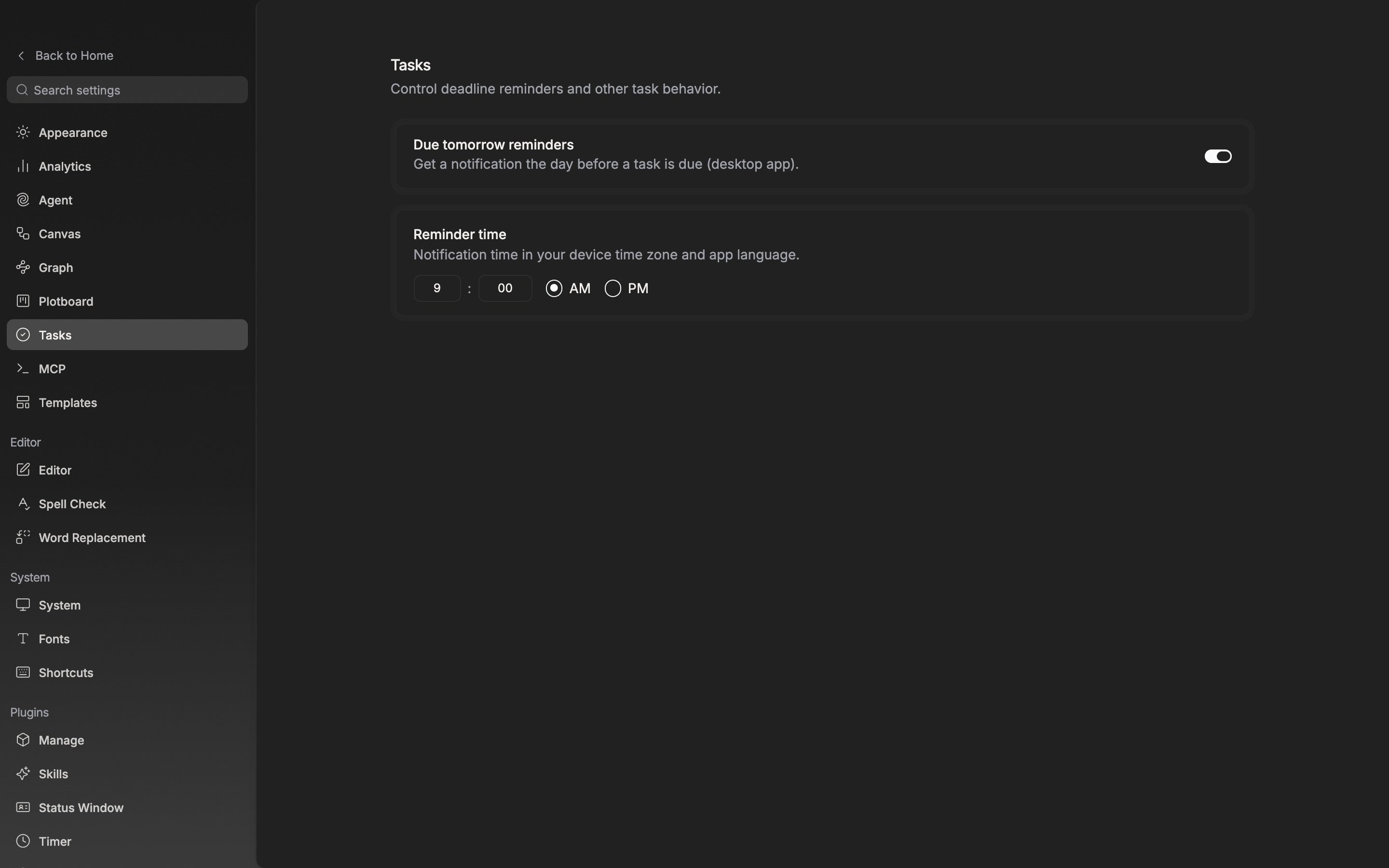
Turn on deadline reminders and set the reminder time in the Tasks tab.
Agent notifications
Scroll down the “Agent” tab and there is a “Notifications” section. “Notify when the agent finishes or needs you” is on from the start. It notifies when the agent finishes responding, and also when it is waiting for approval or has something to ask. With it on, a “Sound” row appears below. Choose among Off, Mono, Ping, Shuffle, Swipe, and Ripple, and use the play button on the left to hear one first. The initial value is Ping. The thread you are looking at right now does not notify. It stays quiet only when you are on that project’s screen, the window is in front, the agent panel has focus, and that thread is the current tab. If even one of these is off, the notification comes. Sound plays only when the window is behind. The notification title is the thread name and the body is the beginning of the last reply. Click it and that thread opens.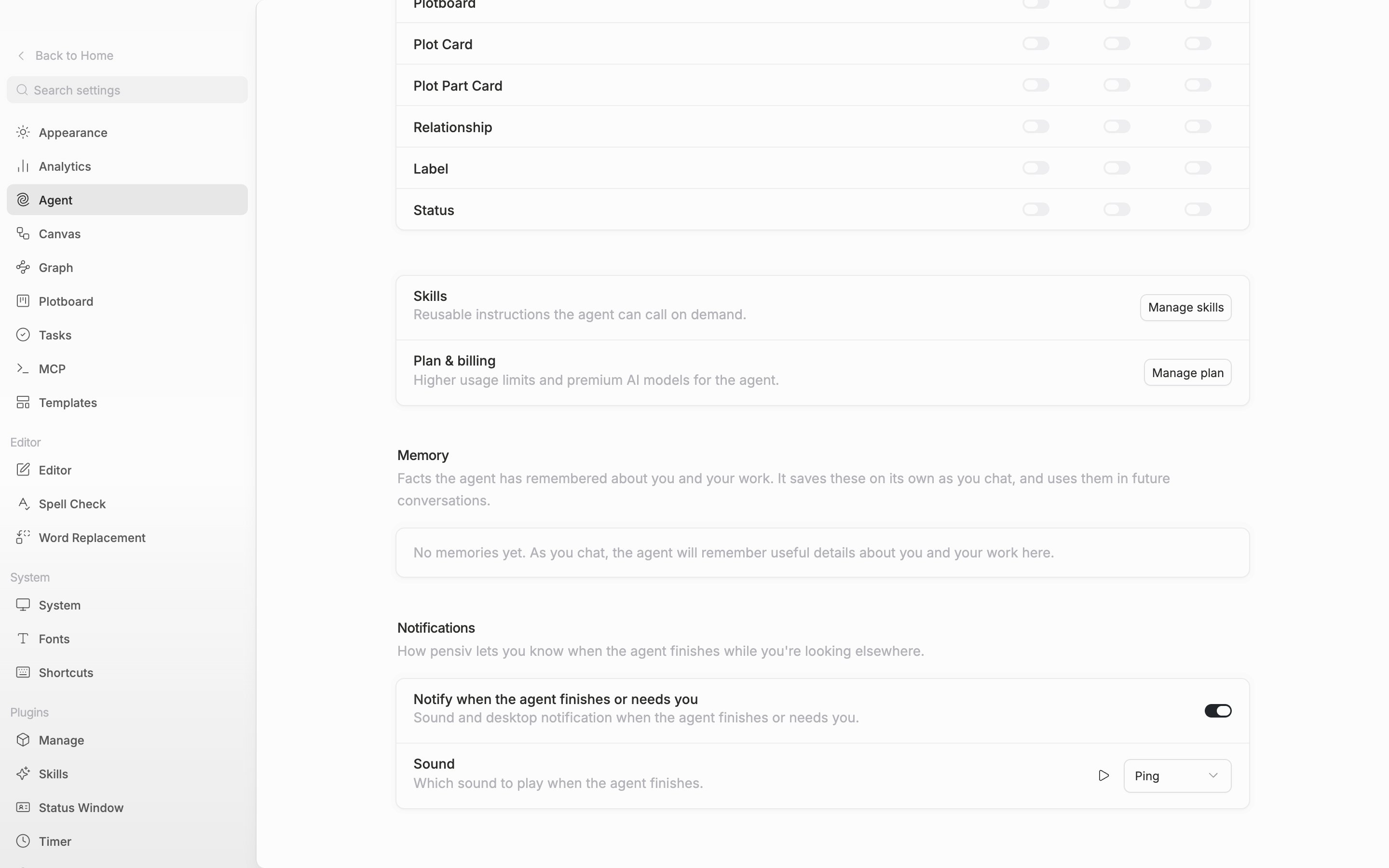
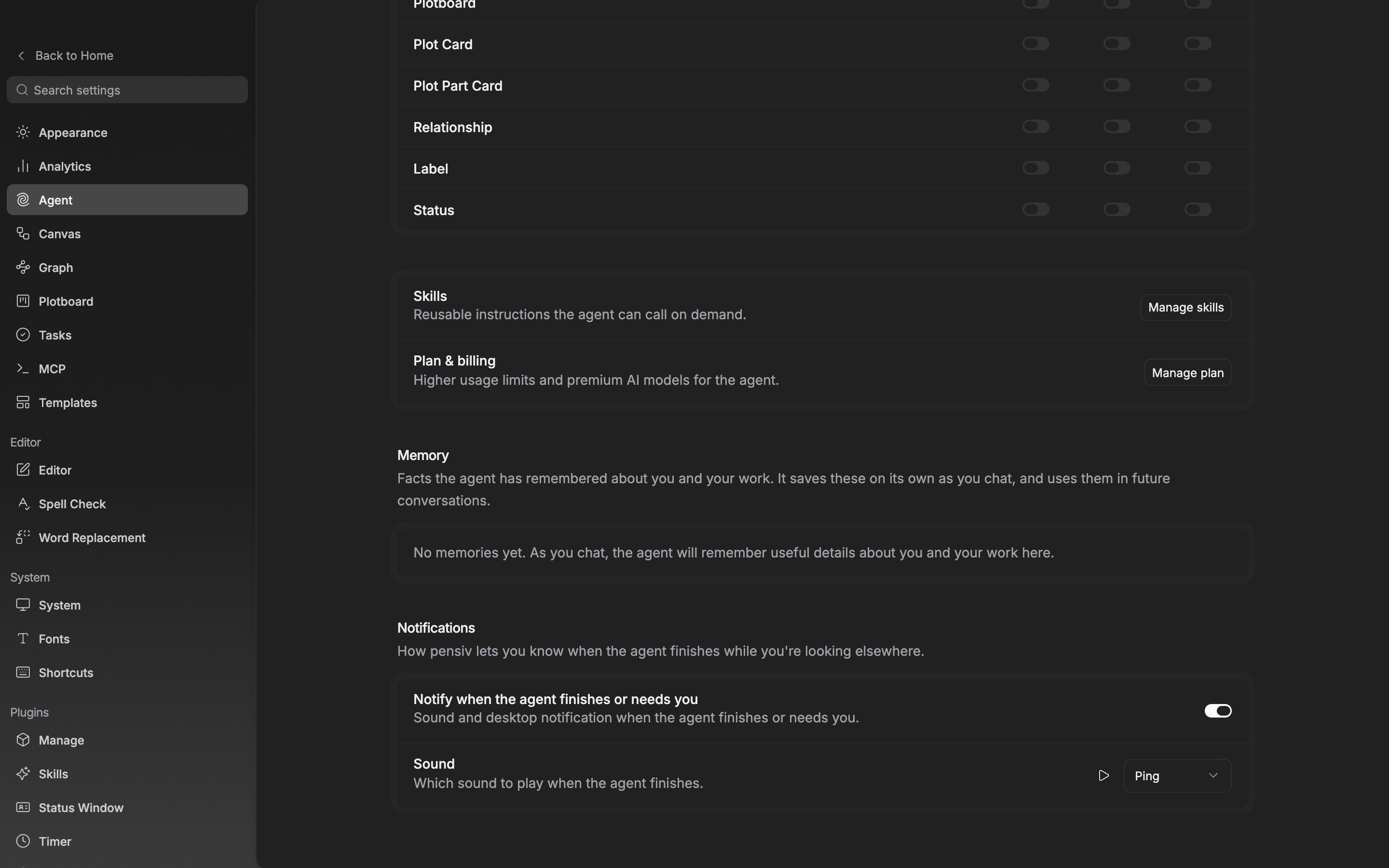
Turn on the agent notification and the row for choosing a sound follows.