

Placing cards
The toolbar at the bottom holds Note card (N), File card (F), and Image card (I). Click one and it appears on the spot. Double-clicking empty background also places a note card. Rectangle, Ellipse, Line, Arrow, Pen, and Text, which follow to the right, are the drawing tools. You write straight into a note card. Select the card, enter edit mode withShift + Enter, and leave with Esc. The title row is hidden by default. Turn it on with Show title in the toolbar that appears above a selected card.
A file card points at a document, sheet, plotboard, or folder in the project. While it is empty it reads only No file selected. Double-click the card and that file opens. For documents and sheets, turning on Show original puts the body text in the card instead of the description. If the description is empty, select the card and press the magic wand button at the top right of the description. AI reads the body and writes the description in (Filling properties and descriptions with AI).
Hover over or select an image card and two chips appear at its top right. One replaces the picture, and the other, Download image, downloads the original file. The right-click menu has the same two options.
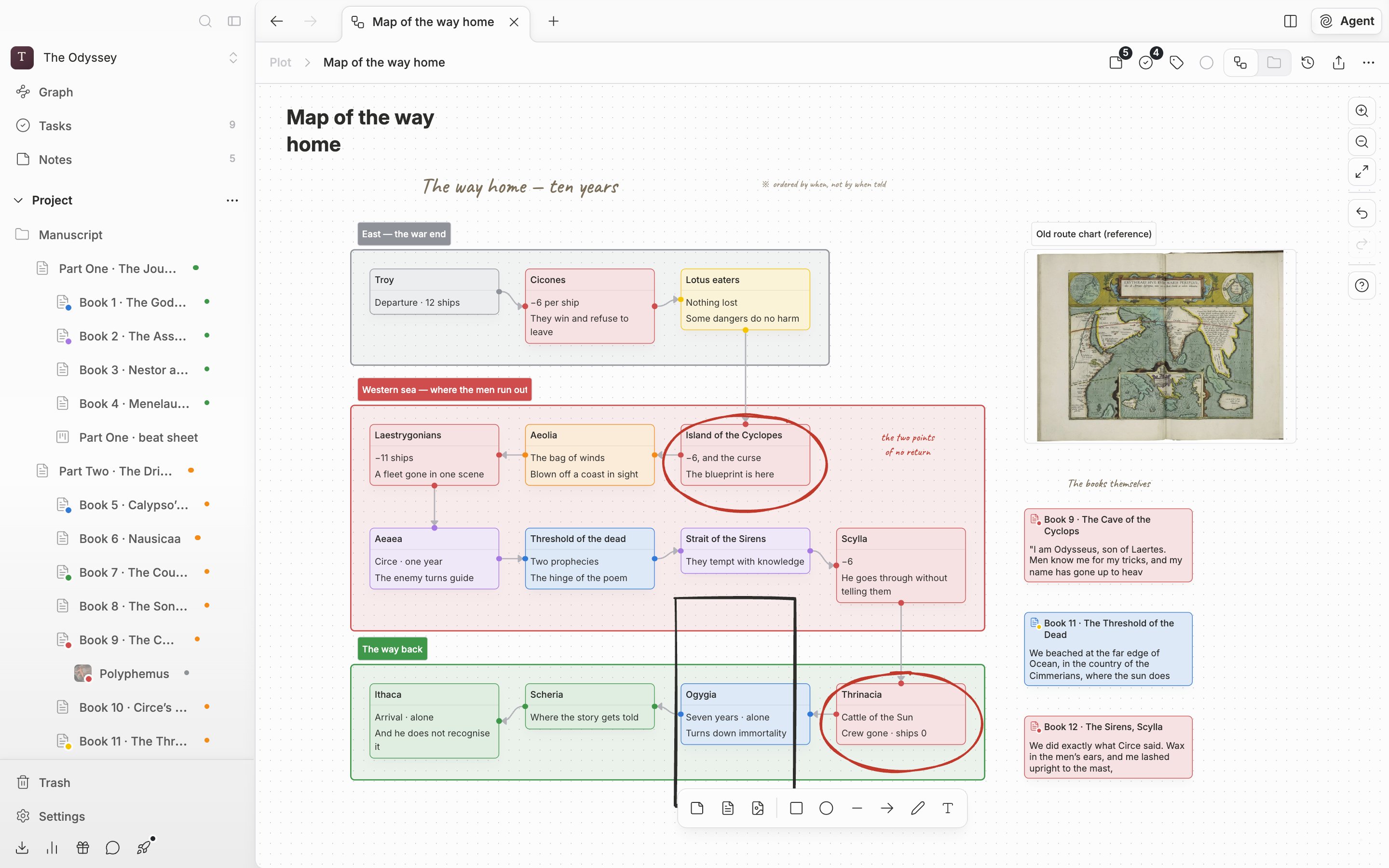
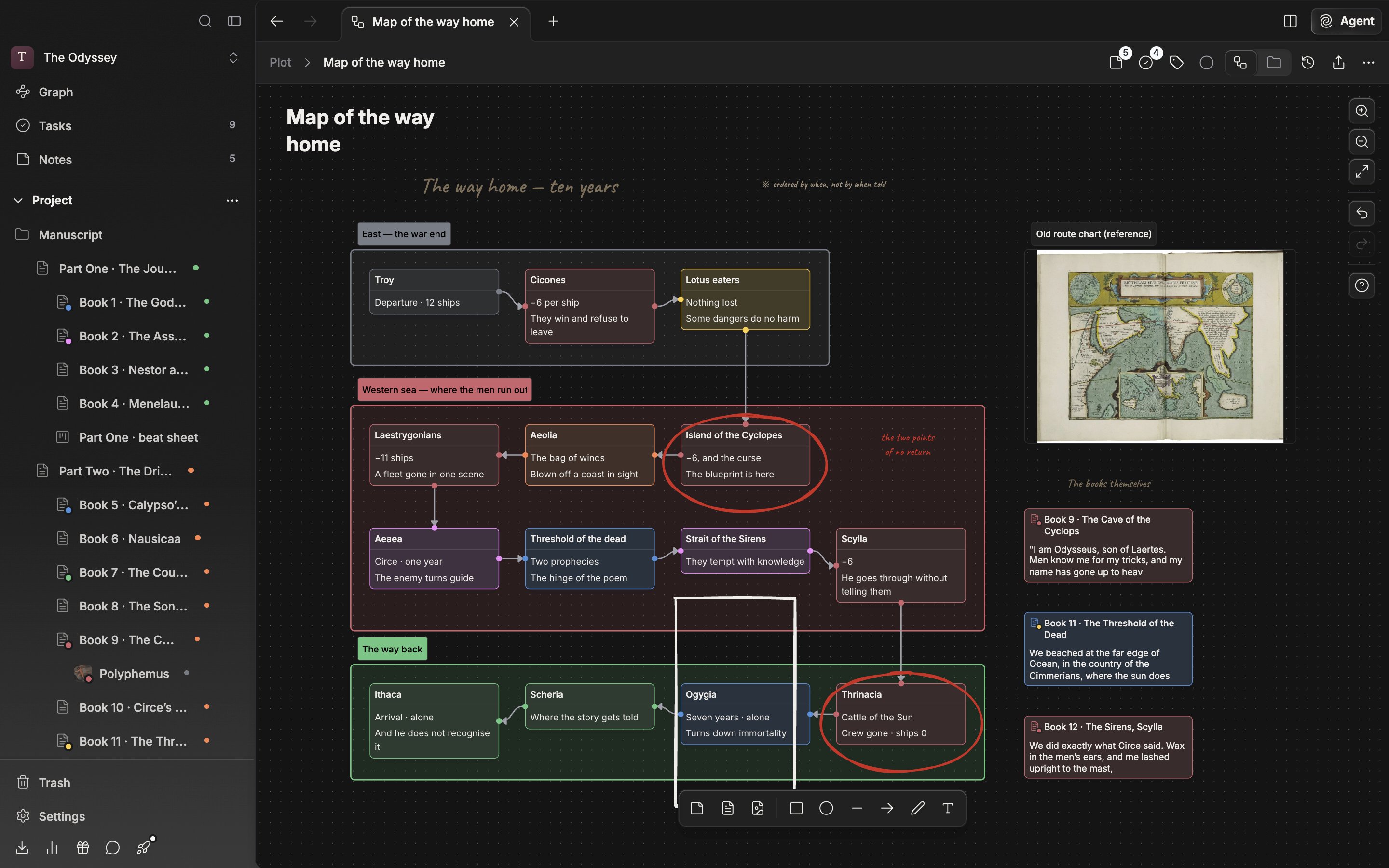
The canvas screen. Cards and drawing tools sit at the bottom, zoom and undo on the right.
Edges
Hover a card and dots appear on its four sides. Drag from a dot and drop it on another card and a line joins them. Drop it on empty space and a menu appears offering Add note card and Add file card. The card you pick is created already attached to that line. Select a line and a toolbar appears above it. Pick Nondirectional, Unidirectional, or Bidirectional under Edge direction, and reverse the arrow with Flip edge. Write something like “because of” or “after that” into Edit edge label and the relationship stays visible.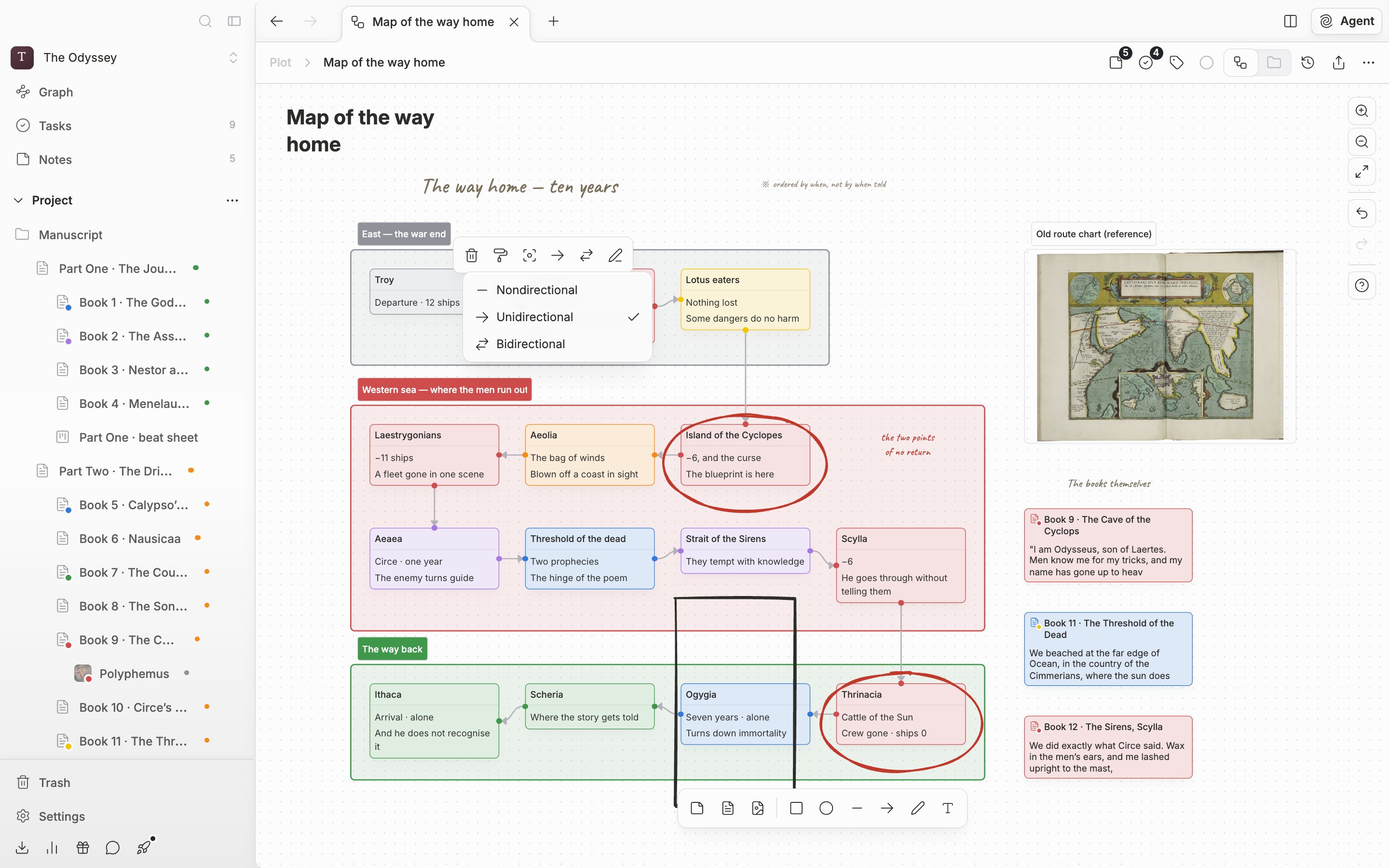
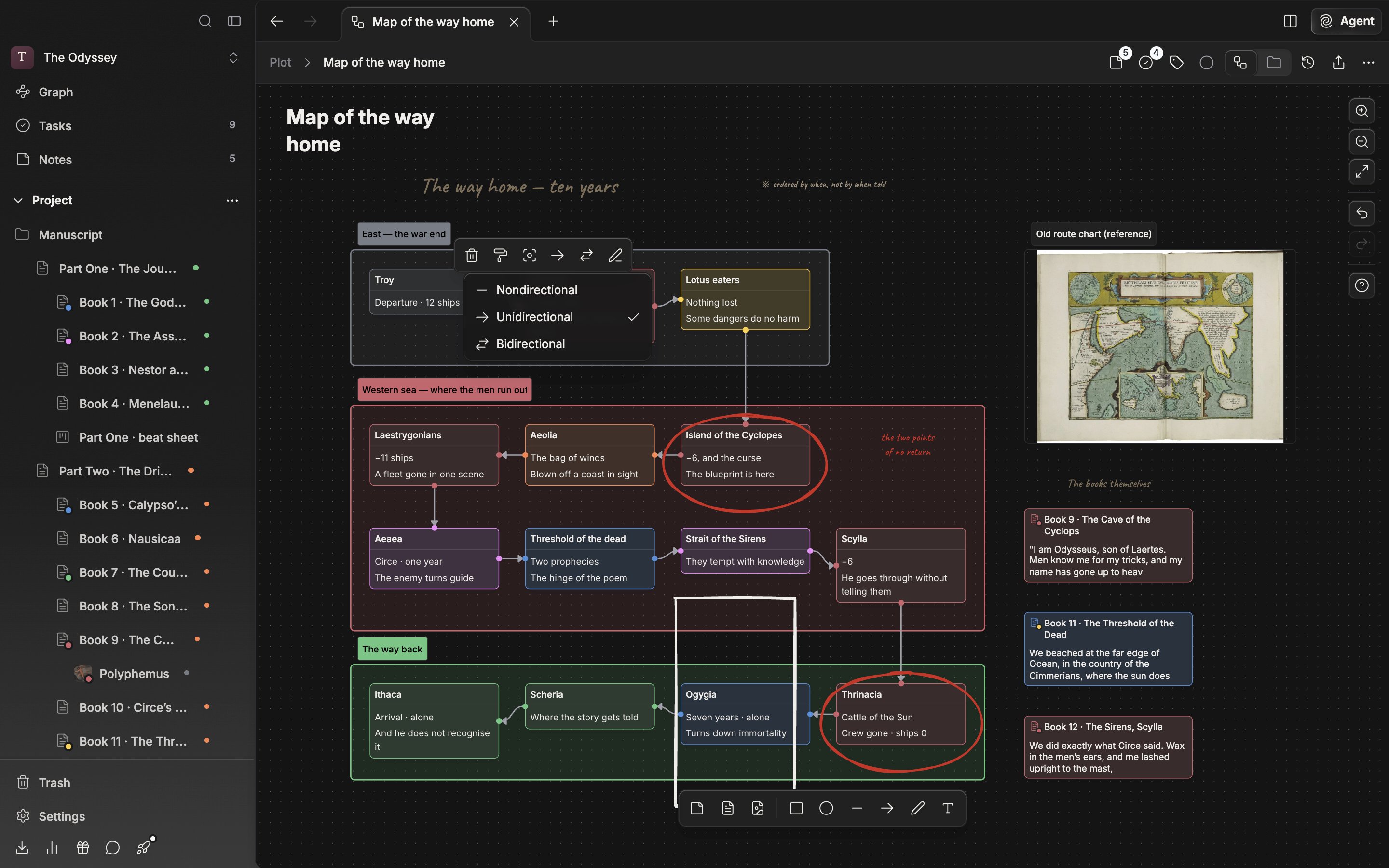
Selecting an edge brings up tools for changing its direction, label, and color.
Grouping
Select two or more cards and click Create group and a border is drawn around them. The name starts as Untitled group, and you change it with Edit group label. Drag the border and the cards inside move with it. Select the group and click Ungroup and only the border goes; the cards stay. Selecting several also brings up the align menu. Align horizontally and Align vertically line them up, and Arrange in a row, Arrange in a column, and Arrange in a grid under Arrange reset the spacing as well.Default Width and Default Height for new nodes, Text Wrap Mode, Auto Zoom on Edit, and the drawing tools’ Default draw text font are changed under Canvas in Settings.