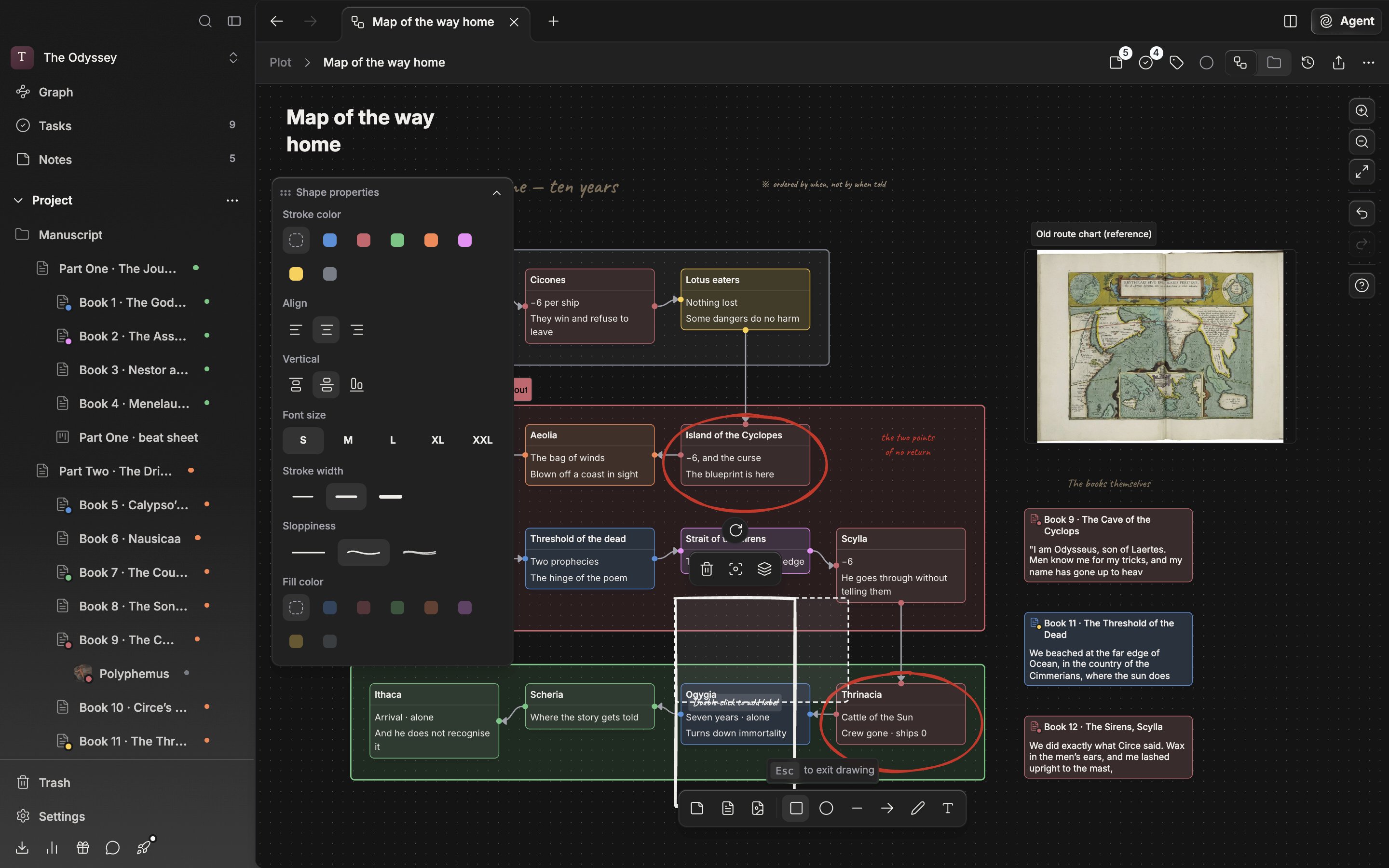
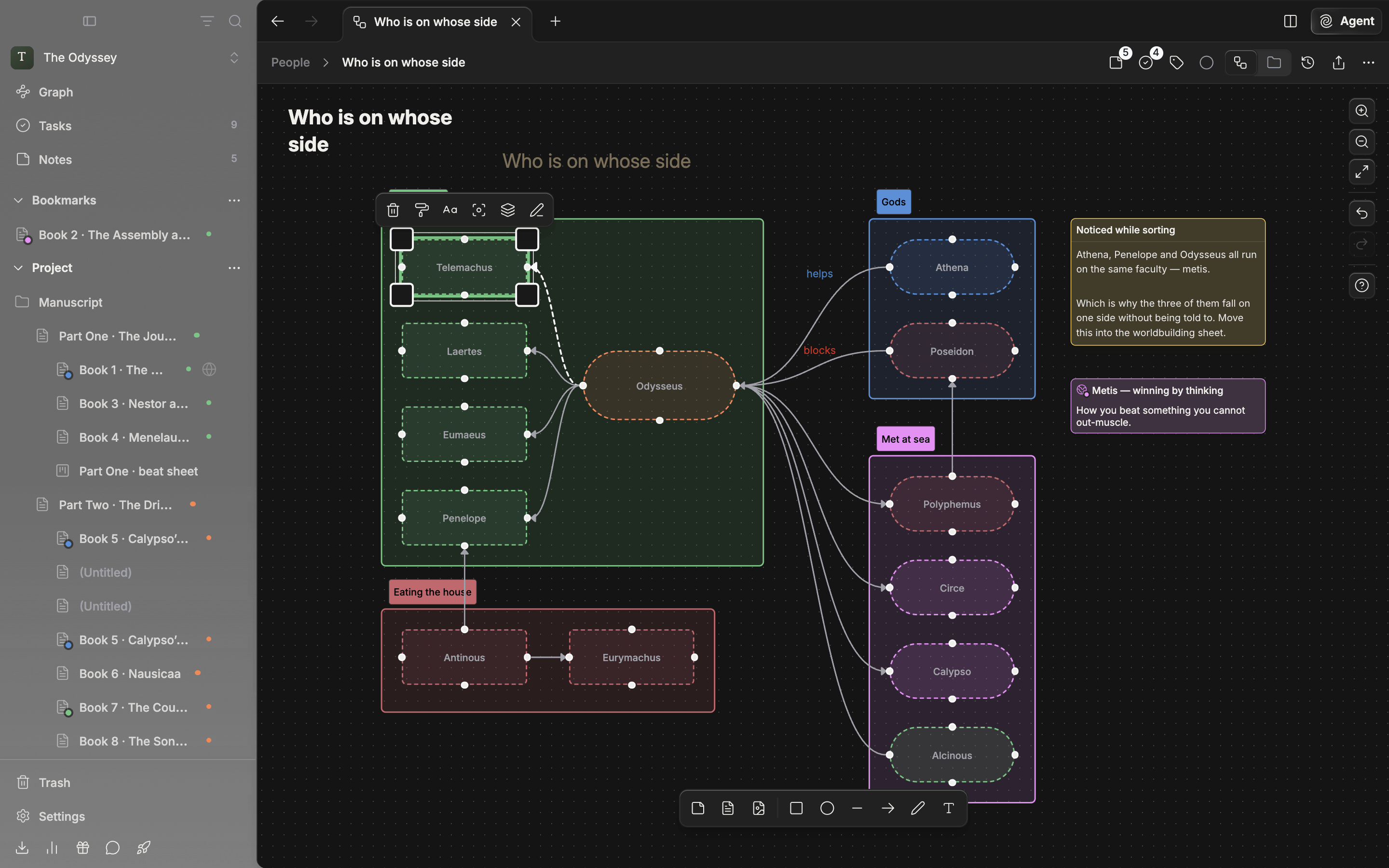
Cards are not the only thing that goes on a canvas. Join two characters with an arrow and box the scenes that belong to Part 3 in a rectangle, and the skeleton of the story shows without moving a single card.

Six tools

Rectangle, Ellipse, Line, Arrow, Pen, and Text sit to the right of the divider in the toolbar at the bottom of the screen. The R, O, L, A, P, and T keys pick them up directly. Pick a tool and a drawing layer covers the canvas so cards can no longer be grabbed, and an Esc to exit drawing hint appears above the toolbar. Draw a shape by dragging it to the size you want; for text, click once where you want it placed. After one shape you return to the select state, with the pen as the only exception — it keeps drawing. Esc is both how you back out of a half-drawn shape and how you leave drawing.
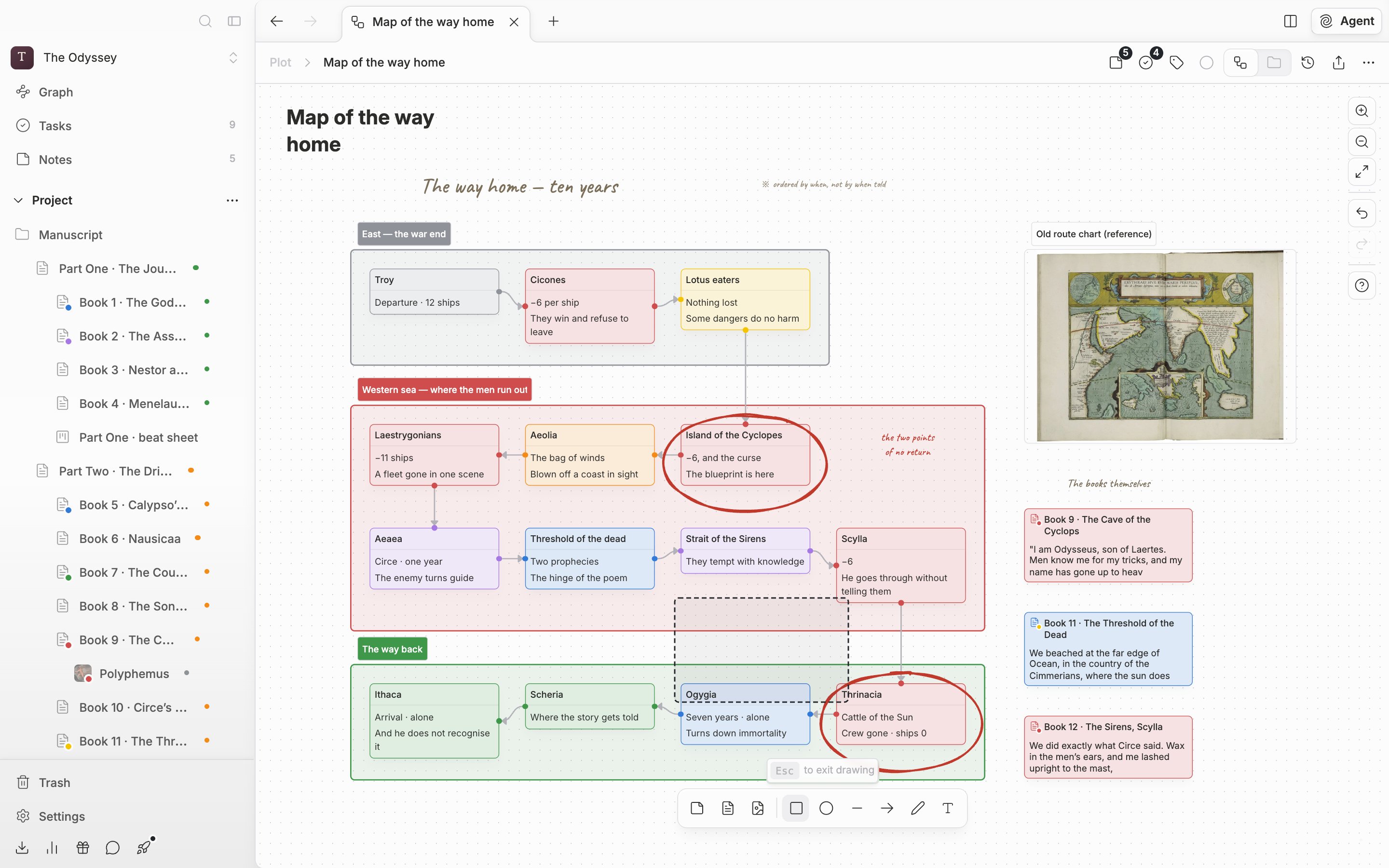
The rectangle tool is pressed in the toolbar and a drag is under way on the canvas, so a dashed preview is showing, and the “Esc to exit drawing” hint is visible just above the toolbar.

Pick a tool and drag to draw. Esc gets you out.

Shape properties

Select exactly one of the things you drew and the shape properties panel appears over the canvas. Drag its header to move it, and use the chevron on the right for Collapse panel and Expand panel. Which entries appear depends on the shape you selected. Stroke color is eight swatches: the default plus seven colors. Sloppiness has three steps, running from a line as straight as one drawn with a ruler to a shaggy line that looks gone over twice. Line & arrow has three: a straight line, a gentle curve, and a line that turns at right angles. A newly drawn line or arrow starts as a curve. Pick a color under Fill color and Fill pattern appears below it, offering hachure, cross-hatch, and solid; go back to No fill and it disappears.
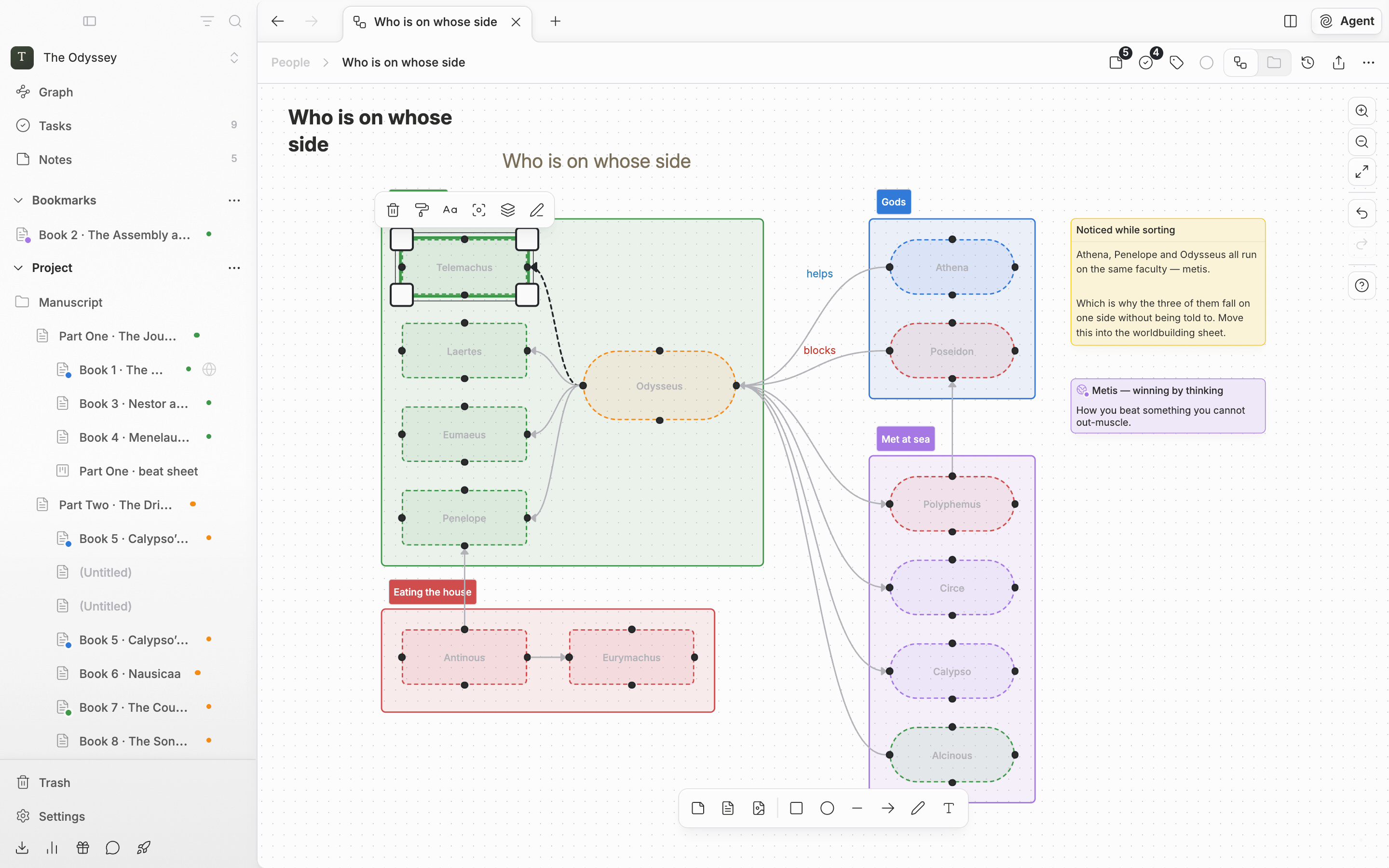
A single ellipse with a fill color set is selected and the shape properties panel is expanded over the canvas. Stroke color, Align, Vertical, Font size, Stroke width, Sloppiness, Fill color, and Fill pattern are all visible.

The properties panel that appears when you select a single shape. You can drag it around and collapse it.

Text and rotation

Double-click a rectangle, ellipse, line, or arrow and you write straight into it. A text shape takes input from the moment it is drawn. Font size has five steps from Small to Huge, so you can attach a chapter title that reads from a distance. Top, Middle, and Bottom under Vertical decide where in the shape the text sits. A rotation handle sits above the selected shape. Drag it to turn the shape, and hold Shift while dragging to snap to 15° steps. On lines and arrows, drag the diamond handle in the middle to bow them, and drop it back near the middle to straighten them.