

One card per column
There are as many columns as there are items in the folder, and only one card sits in a column. Cards in different rows do not share a column. So even when cards are scattered across three rows, reading them left to right gives one continuous order. It is the same order you saw in Grid and List. Drag a card onto an empty column and it moves there. Drop it in a column on another row and its order and its label change at once. You are pushing the scene backward or forward and deciding which thread it belongs to at the same time. In a locked folder, cards do not drag.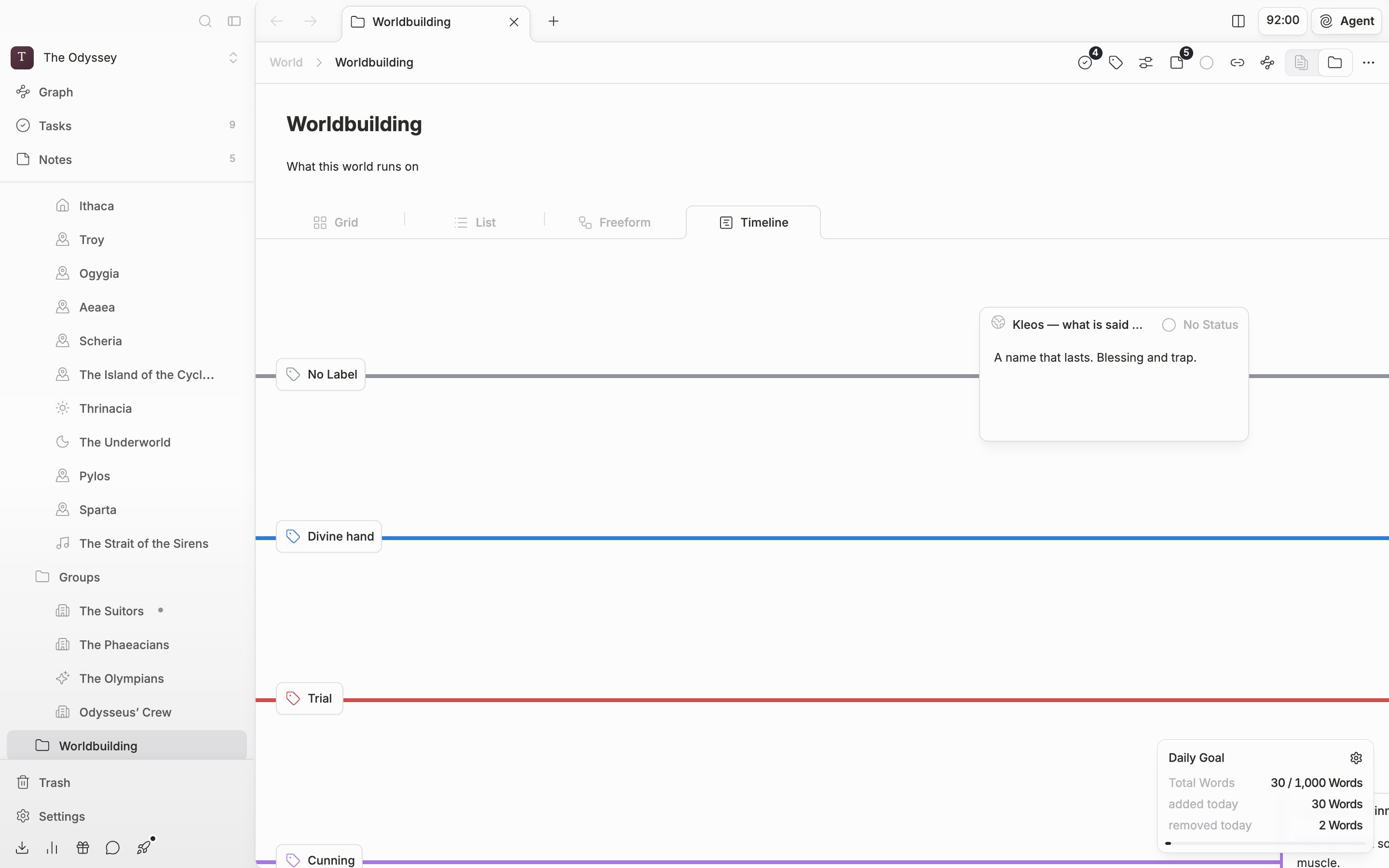
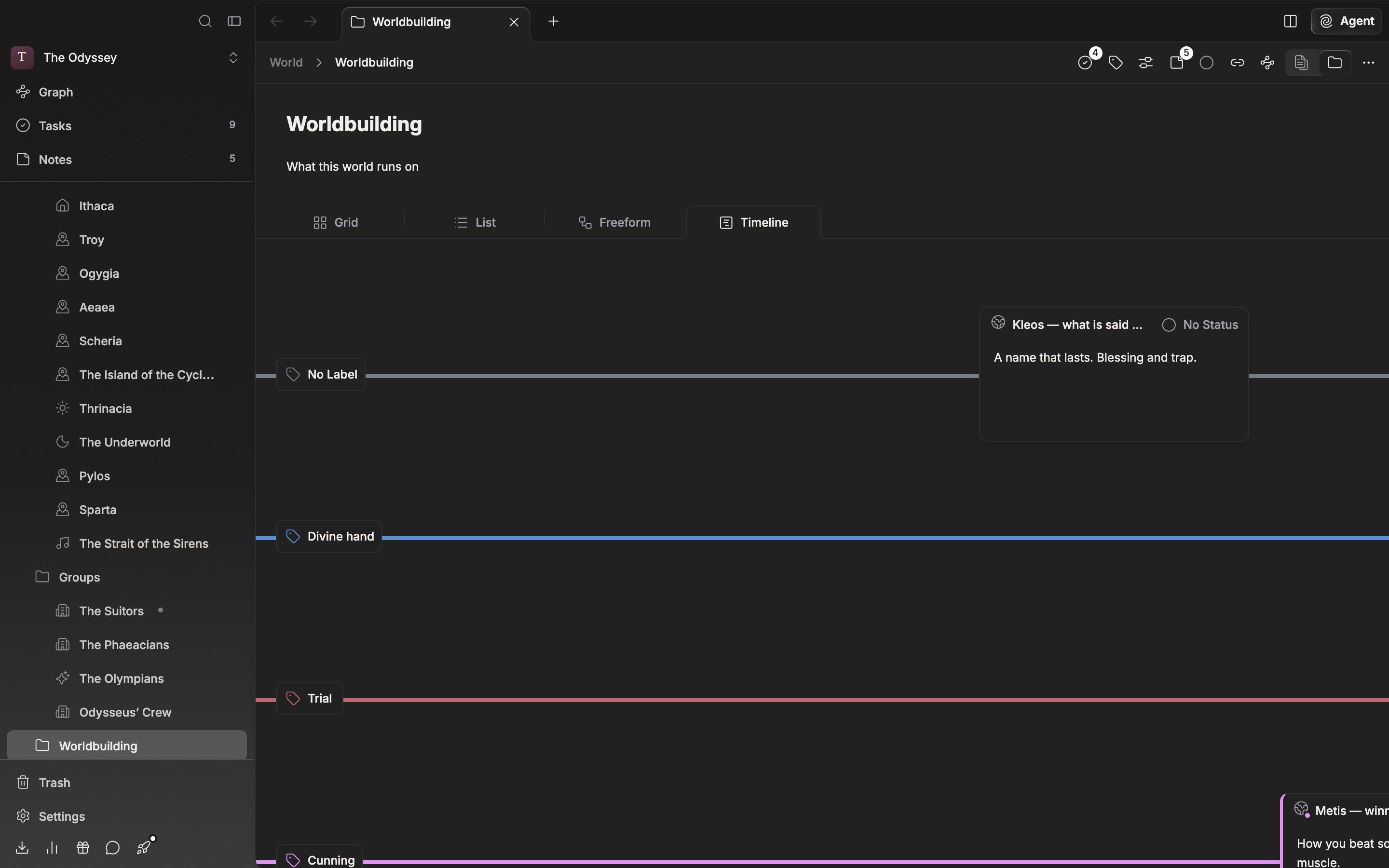
Rows are labels, columns are order. Read from left to right and you get the order of events.
Labels make the rows
The first row is always “No Label”. After it comes one row per label in the project, and the row order follows the label order you set in Settings. Items with no label, and items that carried a label that has since been deleted, gather in the “No Label” row. To make a new row, make a label. Right-click a card and pick “Add Label” at the bottom of the label submenu, and the Labels tab in Settings opens.Horizontal and vertical
Click the “Orientation” button in the header and the horizontal timeline flips to vertical. Stretches where events run closely together are better read vertically. This value is remembered per folder, so you can leave it different from folder to folder. Drag empty space and the view moves with it. In a folder with no items at all, only “No items to display in the timeline” appears.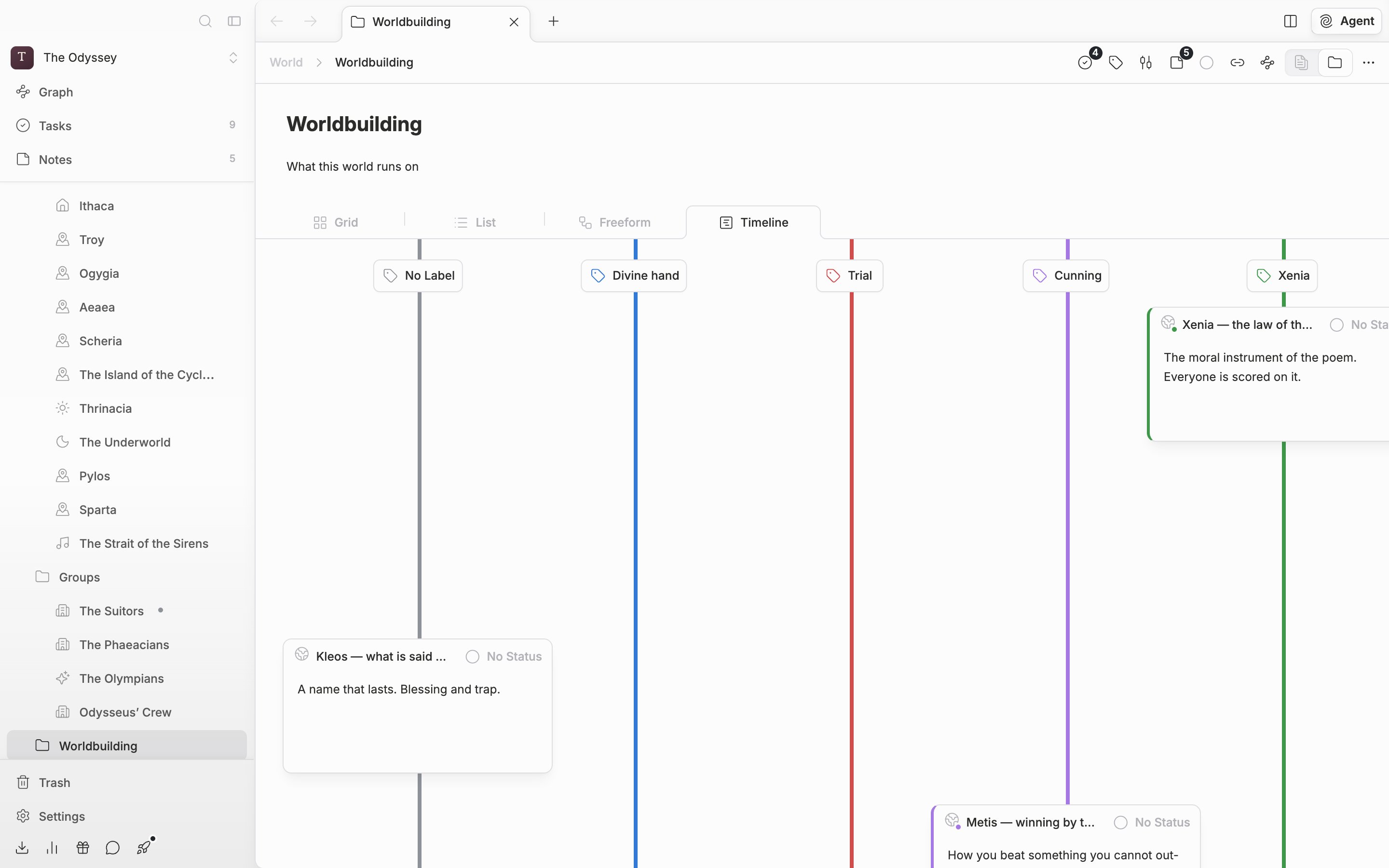
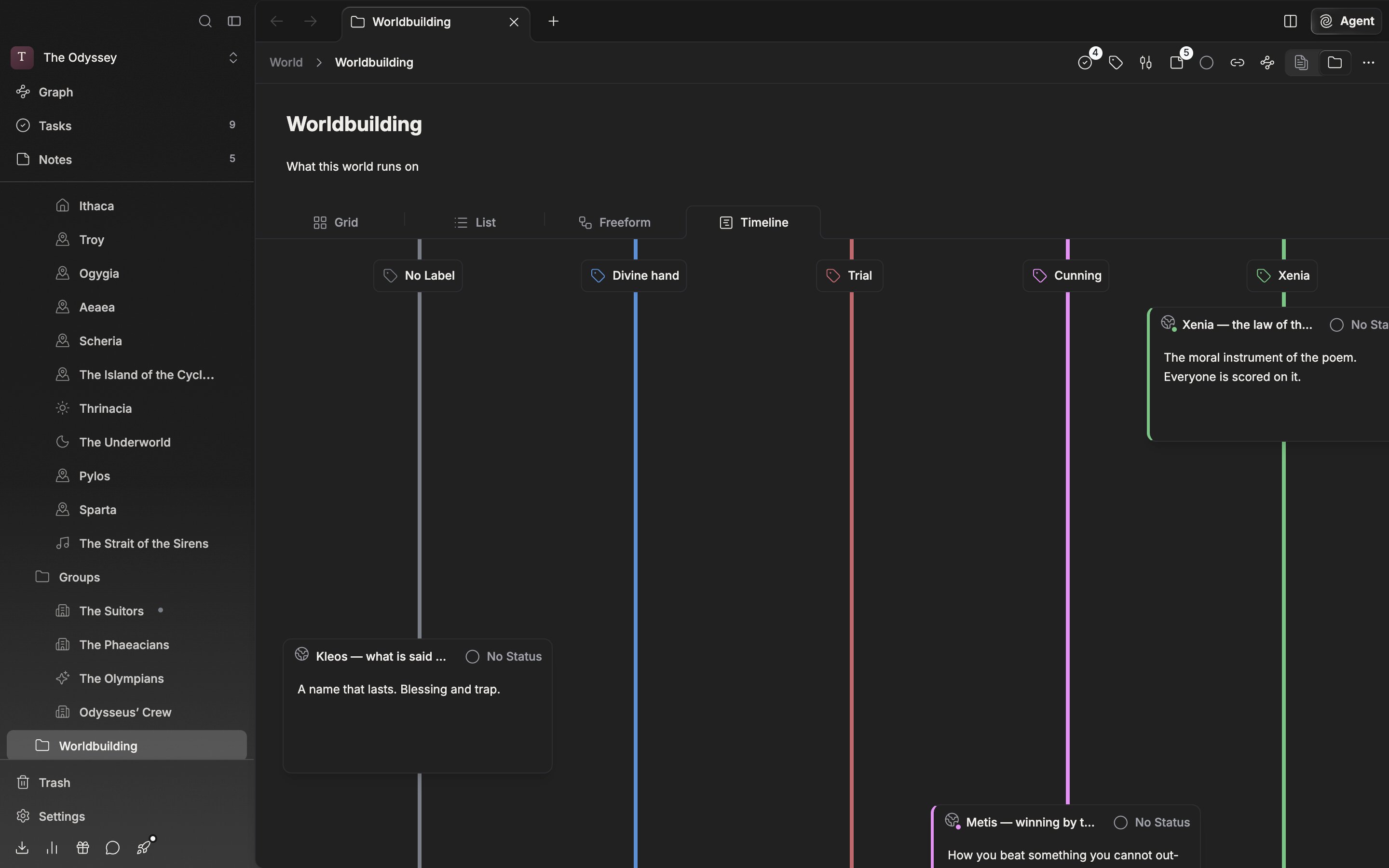
The Orientation button switches between horizontal and vertical. It is remembered per folder.