

Opening the screen
Pick Skills from the Plugins group in the settings list on the left. Pressing the Manage skills button at the bottom of the Settings → Agent screen goes to the same place.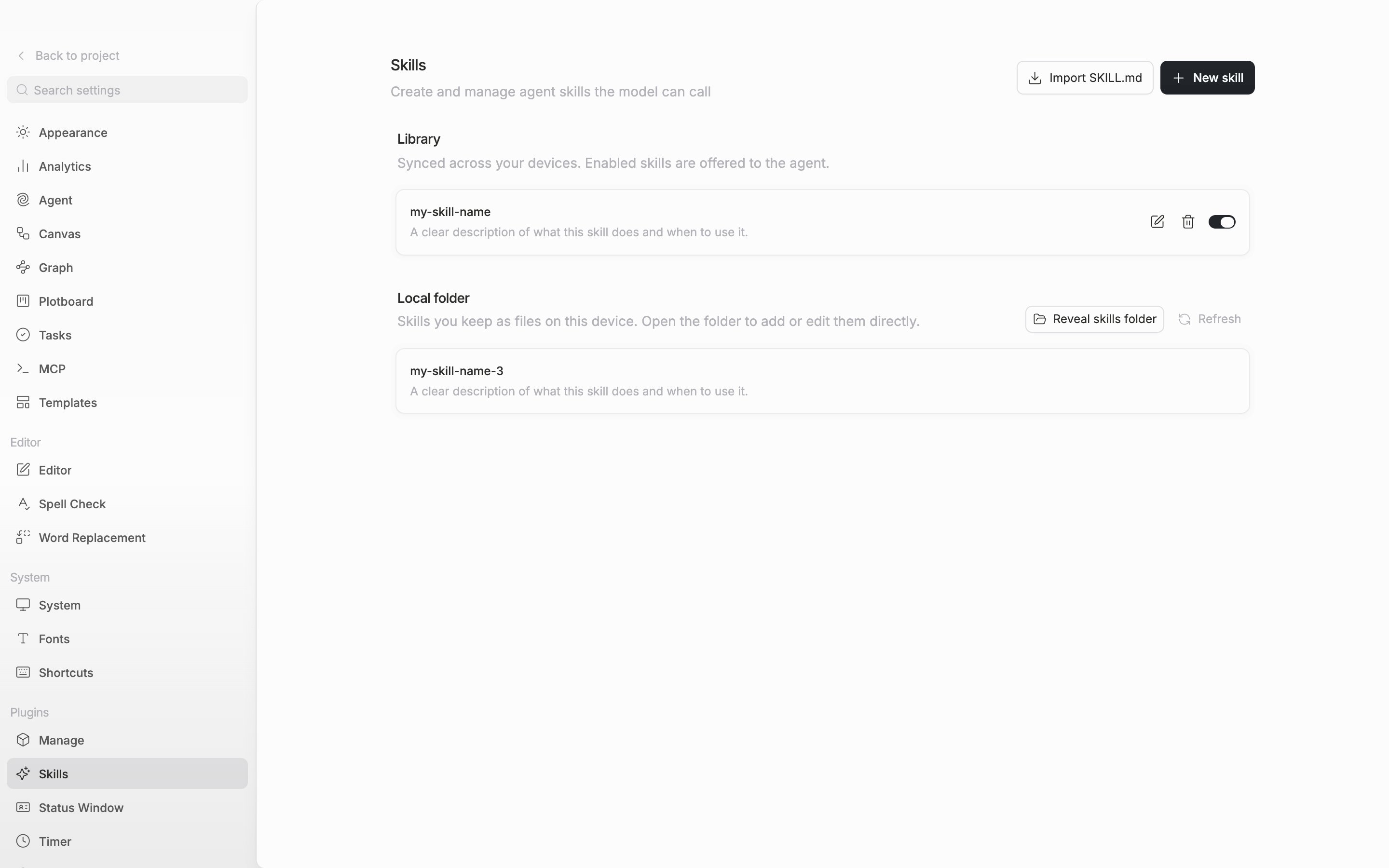
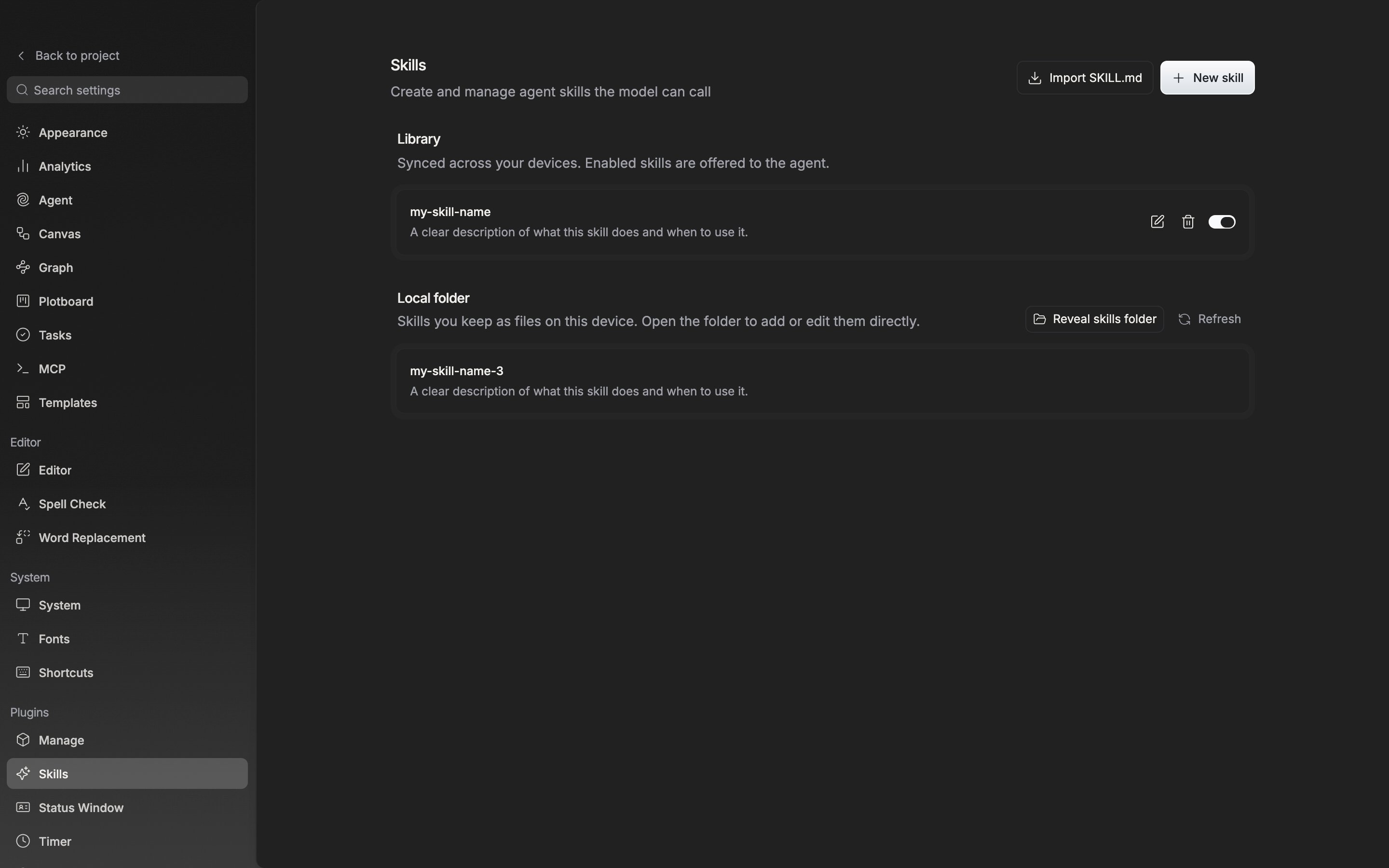
The skills screen. Skills you turn on in the library are passed to the agent.
Creating a new skill
Press New skill at the top right and the edit screen opens. There are three fields.- Name — letters, numbers, dot, dash, and underscore only. It is the id the agent calls.
- Description — one line on when to use this skill. It is shown in the agent’s catalog and is what triggers the skill.
- Instructions — write the steps and rules the agent follows.
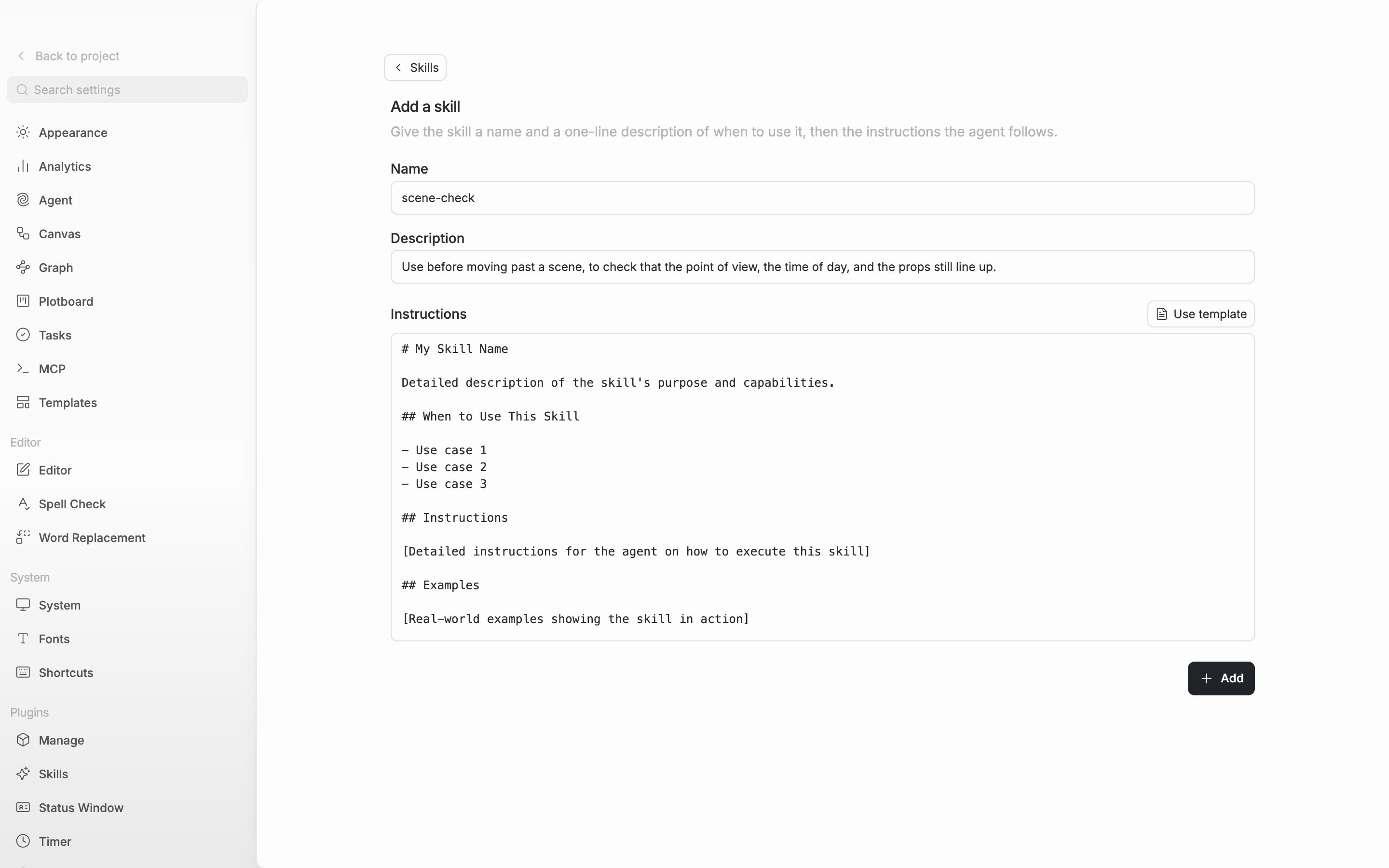
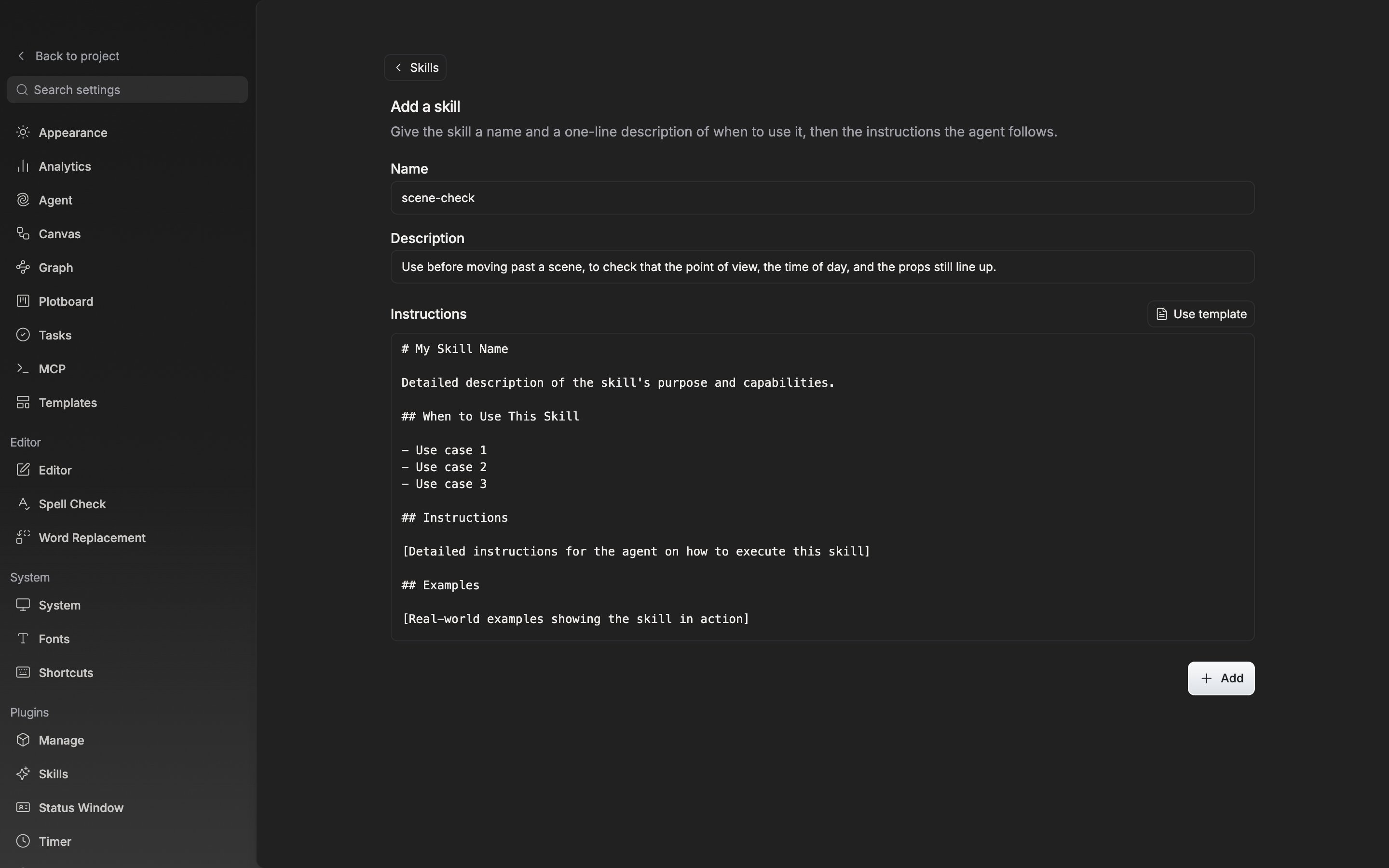
The skill edit screen. You only fill in the three fields: name, description, and instructions.
Importing SKILL.md
If you already have a skill file written, use Import SKILL.md and pick a.md file. It has to be in the form of frontmatter wrapped in --- with a name in it, then the body below. Otherwise a “Couldn’t read that SKILL.md” notice appears. If a skill with the same name already exists, that skill is updated.
Turning them on and off
The library list is synced across devices. Turn off the switch at the right of a row and that skill is not passed to the agent. Press the name and the edit screen opens. The trash can is delete. The local folder is for skills you keep as files on this device. Press Reveal skills folder and the folder opens. Make a folder named after the skill inside it, put aSKILL.md in, refresh, and it is picked up in the list.
Calling one from the manuscript
Type/ in the chat composer and skills appear in the list with their name and description. Pick one and a /name chip is embedded in the message; write what you want done after it.