

Cmd/Ctrl + K with a project open and the command palette appears. One input field covers finding files, making them, and changing settings. The shortcut binds only inside a project, so it does nothing on the home screen.
When you have typed nothing
The empty palette is divided into a few blocks. At the top, Recently used carries up to four rows you have picked often from this palette. Below that come Suggestions · Navigate · General in that order. Suggestions holds the things tied to the file you are looking at, so it appears only while a file is open. Rows that carry the file name, such as Set Label for “Chapter 1 draft” and Open Notes for “Chapter 1 draft”, come up alongside fixed-name rows such as Move To…, Duplicate, and Move to Trash. Navigate holds Go to Project Home, Go to Graph View, Go to Tasks, and Go to Notes. General holds Settings, the theme you are not using at the moment (Light Mode or Dark Mode), System Theme, Show getting-started checklist, Open Log Folder, and Hanja Dictionary. Only the row for the theme you are using drops out; the other theme rows stay.Once you start typing
Results shows files whose titles match right away. The search that digs into body text arrives a beat later and attaches to the bottom of the list in per-type groups such as Documents, Sheets, and Plot Cards. Create rises to the top only when you say to create something. Typecreate draft and five rows appear, from Create ‘draft’ as Document through sheet, plotboard, canvas, and folder. Point at a type, as in new document draft, and only that one row is left. When you type a bare word, the create rows drop below the search results.
The Settings group catches values too, so typing dark produces a row that applies on the spot. If the app language is Korean, Find Hanja for ’…’, which looks up Hanja for what you typed, always tags along as well. It opens the Hanja Dictionary on that word.
Narrowing and previewing
PressTab and what you have typed hardens into a chip in the input field, and what you type next is searched only within it. Clear the chips all at once with Esc, or one at a time with Backspace in an empty input field.
Put the cursor on a document, sheet, task, note, or plot card row in the per-type groups below and its contents preview on the right. Open page takes you straight in. It does not appear when the window is narrow.
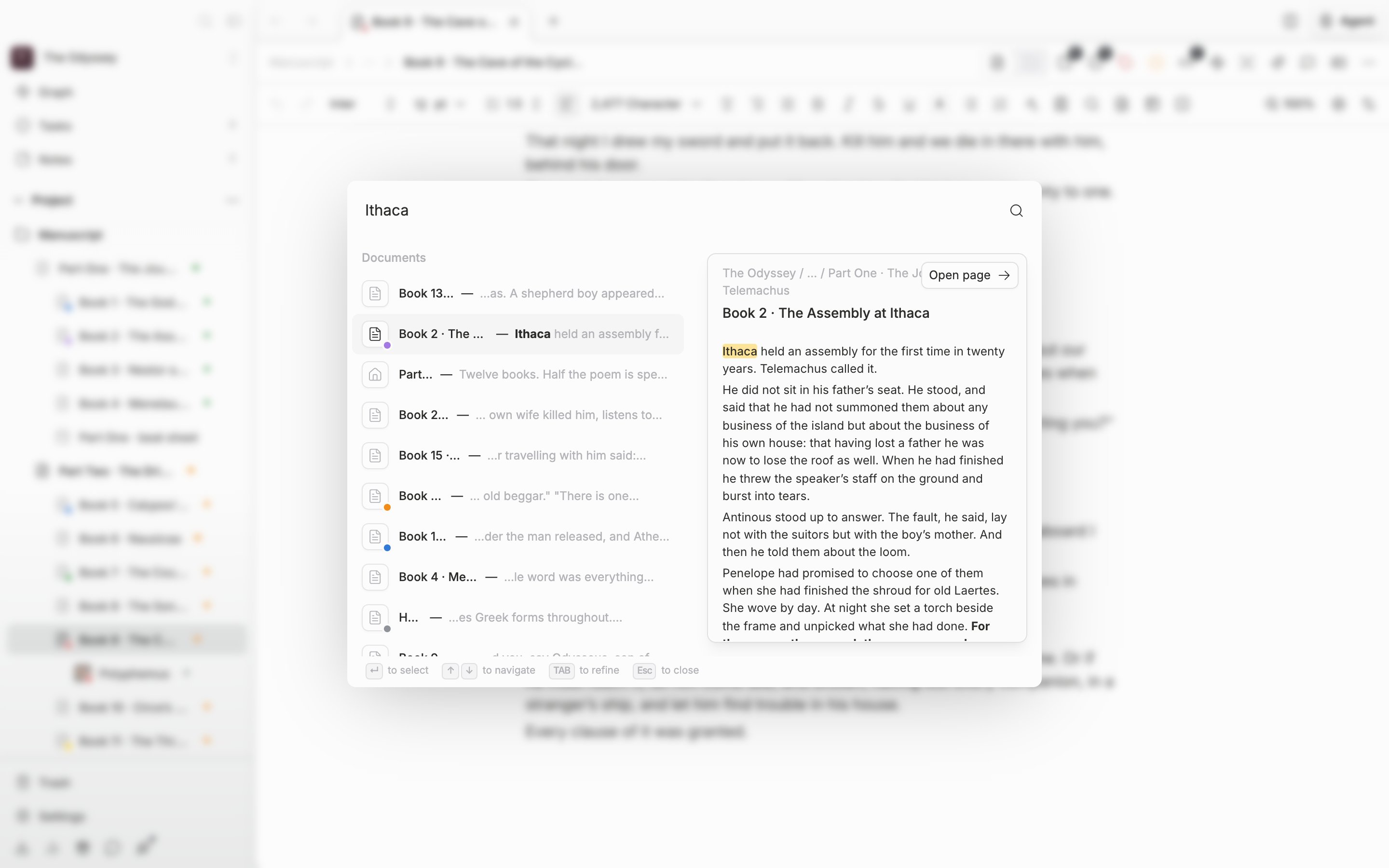
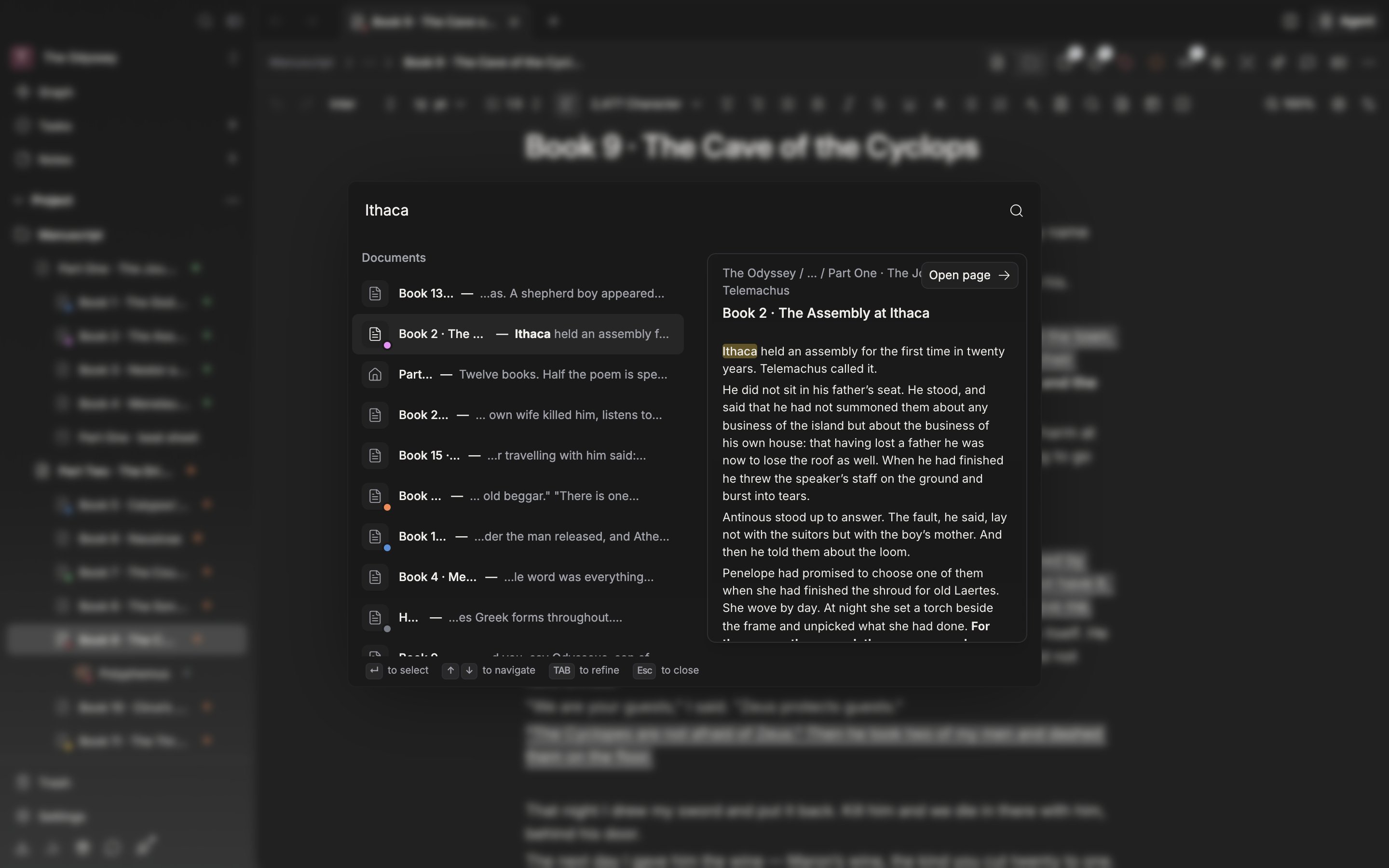
Pick a row in a per-type group and its contents preview on the right.
The hint line under the palette tells you which keys are live at that moment.
Enter to select, ↑ ↓ to navigate, Tab to refine, Esc to close.