

Import
Drag files or folders onto Settings → Import.Supported: DOCX, EPUB, TXT, MD, HWP, RTF, folders, Scrivener projects, Notion exports (.zip) & pensiv project files (.pnsv)By extension that is
.docx, .epub, .txt, .md, .markdown, .hwp, and .rtf. Select Files also takes .scriv, .zip, and .pnsv, the pensiv backup, and Select Folder takes a whole folder, carrying the structure and order inside it over unchanged. For Scrivener, hand over the whole .scriv folder rather than the .scrivx file; for Notion, put in the .zip you downloaded without unpacking it.
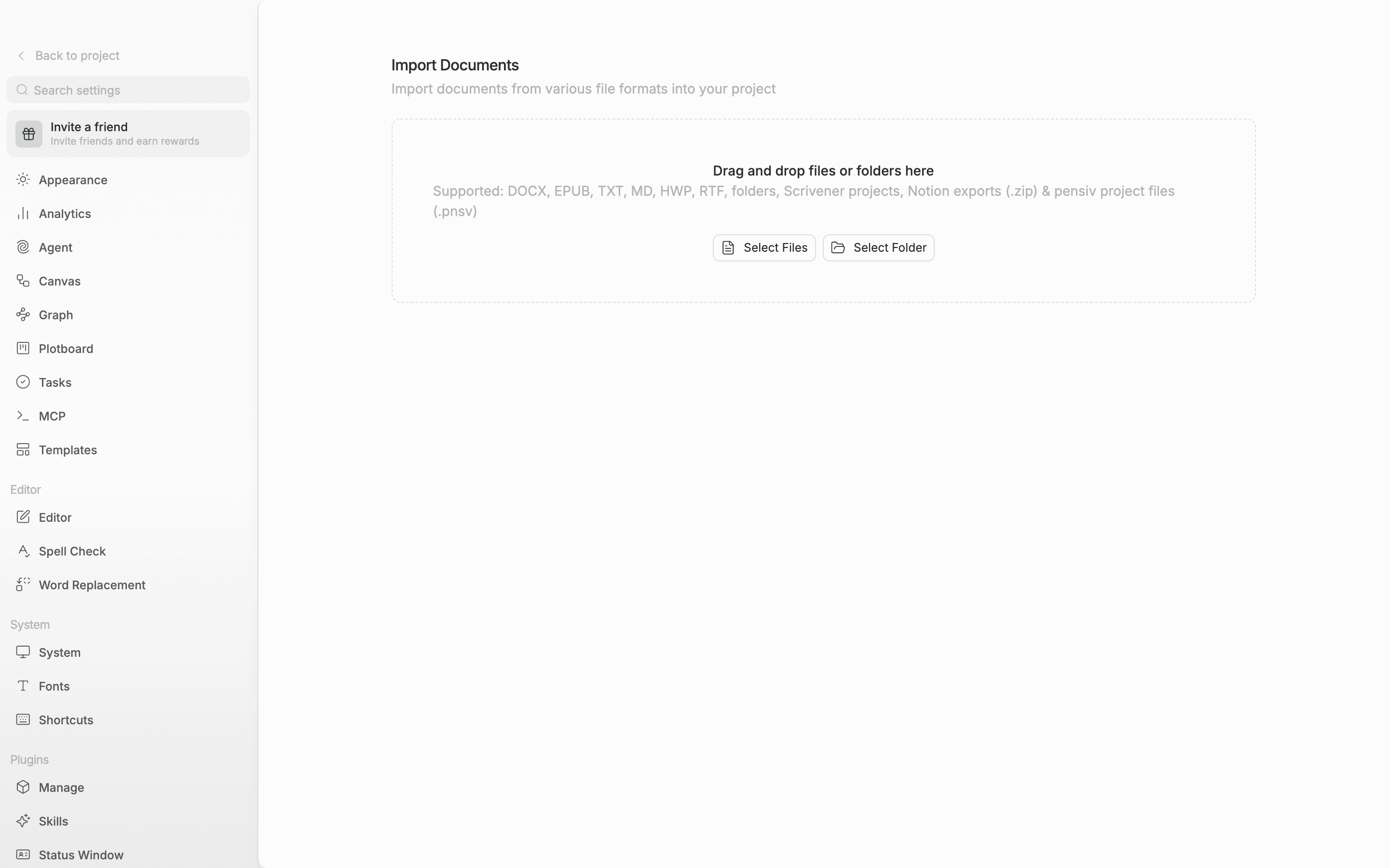
The formats it accepts are written out inside the import area.
Export
The Export menu in the document and sheet headers holds six entries: Export as PDF, MS Word (.docx), EPUB (.epub), Markdown (.md), Text (.txt), and Hangul Office (.hwp)..docx, .epub, and .hwp carry the pictures in the body along with the text, while .md and .txt come out as letters only. Pictures placed side by side go in as a borderless table, so they sit side by side in the receiving program too. .txt is saved with Windows-style line breaks, so paragraphs don’t fall apart when you paste it into Hangul or Notepad. In every format a mention turns into plain text spelling out the item’s title.
The five formats other than PDF bring up a save dialog before the conversion, where you choose the folder and file name. PDF goes through the print dialog.
Several at once
Export documents in the folder header, Export documents inside in the header of a document, sheet, canvas, or plotboard switched to folder view, or picking several documents and exporting them opens a window. Export Format has five entries — HWP, DOCX, EPUB, TXT, Markdown — and no PDF. Export Mode is Combine, which joins them into one file, and Separate, which packages them into a ZIP. The Include file titles and Include folder titles switches appear only when you combine.The
.pnsv backup that holds a whole project is a separate thing. See Exporting all project data. A DOCX made with Combine holds only the text, without pictures or formatting.