

Generating a review
Open a document and press AI Review in the header, and a panel opens on the right. Choosing Open AI Review for “document title” from the command palette does the same. It opens only on documents, not on sheets or folders. Format is fixed to Web novel. What you have to choose is Target audience, How direct feedback is, and What to critique. Once it is all set, press Generate review at the bottom. If you leave no lens turned on, “Choose at least one lens.” appears and it does not run.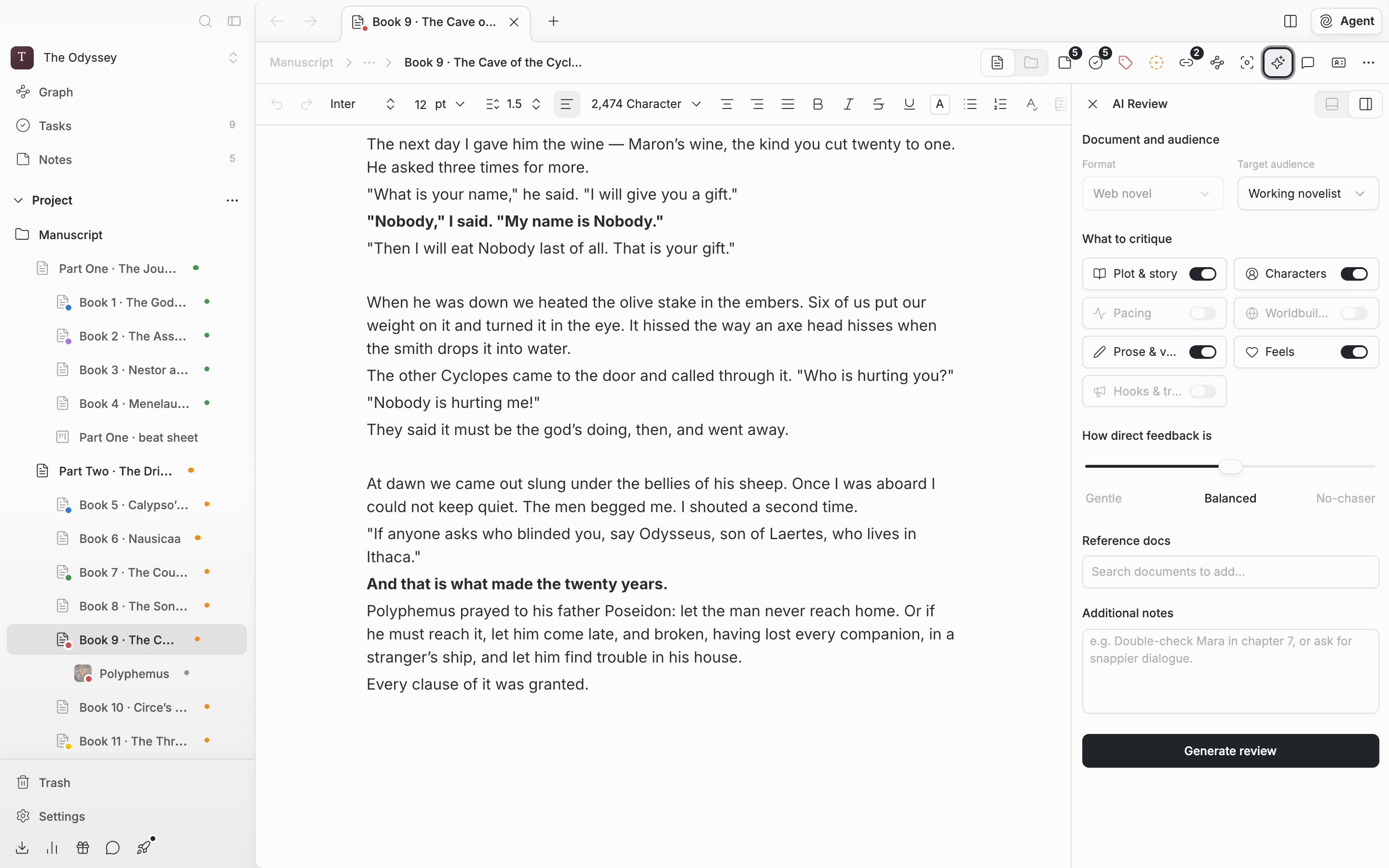
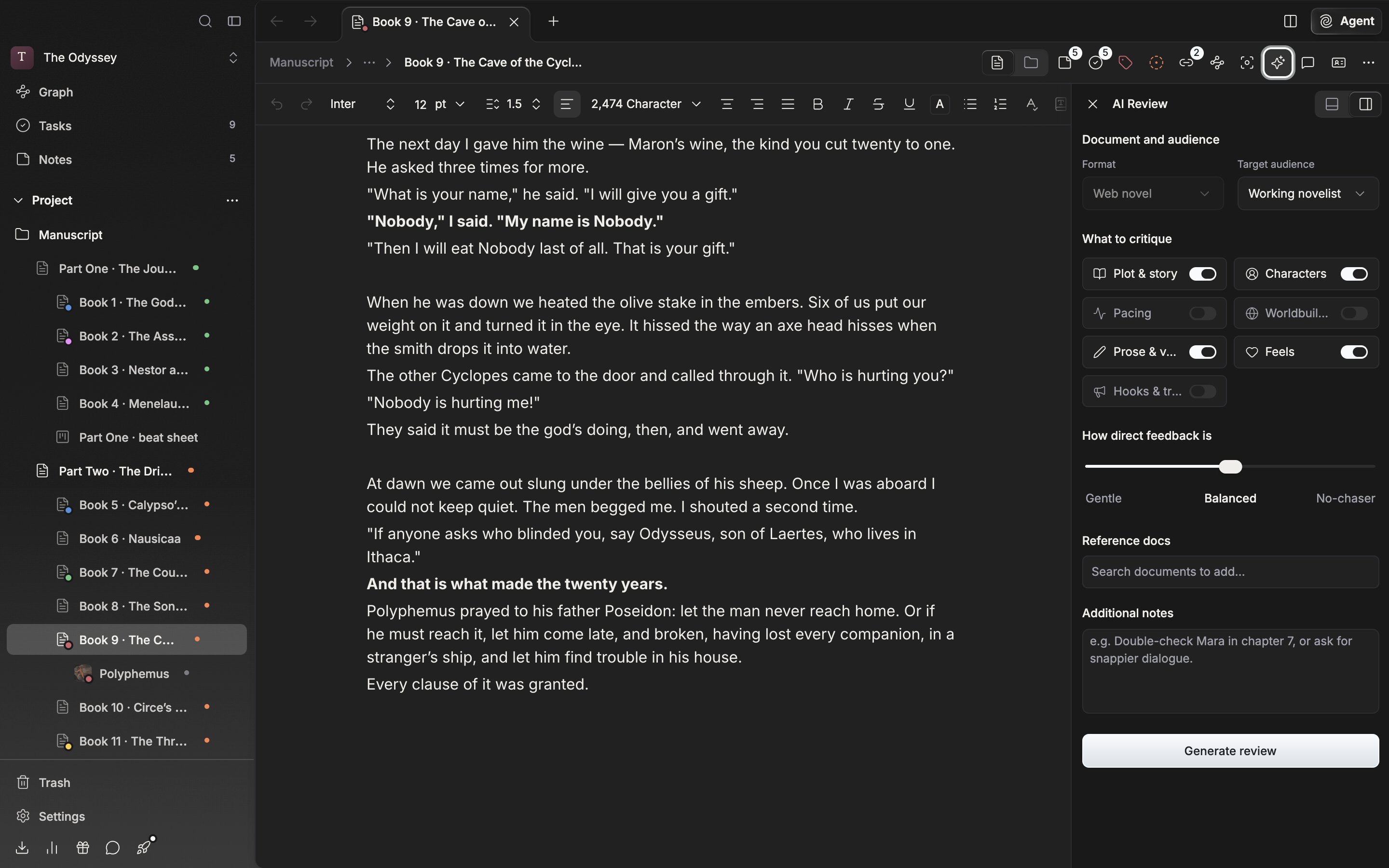
The AI Review panel. Choose the target audience and the lenses, then press Generate review.
While it streams
First, a phrase like “Reading through your writing…” changes every few seconds. Then the scores for the lenses you turned on and the star rating fill in one after another, and what top percentage it is attaches under the star rating. The feedback body streams out line by line. Leave three or more lenses on and the scores are drawn as a radar chart. The review reads the body as it stood the moment you pressed Generate review. If you keep editing the manuscript while you wait, it is not reflected in this review.Stopping and running again
To stop partway, press the arrow at the top left of the panel. The request in progress is cut off and the screen goes back to the settings step. The feedback that came out until then is not kept. Closing the panel or moving to another panel such as Notes cuts it off the same way. Once it is all in, press Run again at the top and it runs once more with the current settings as they are. Use it when you want to change the tone or rework the lenses and look again. This button does not appear on a review loaded from Past reviews.On a plan with a daily limit, the count used today and the time left until the reset appear briefly each time a review finishes. The Free plan is 3 per day, and a total limit over the last 30 days applies along with it. When it is cut off by a problem on the server side, a notice saying “this attempt wasn’t counted” comes with it.