

Choosing toolbar buttons
Press the slider-shaped button at the far right of the toolbar (Customize Toolbar) and a list opens. The gear button just to its left is Current File Settings, which opens a different window. The upper part is Shown in toolbar; groups hidden whole gather below under Hidden from toolbar. Reset at the top right returns everything to its starting state. The buttons come in seven groups: History, Font, Alignment, Formatting, Lists, Tools, and Statistics. The number at the right of a row is how many buttons in that group are visible out of the total. Expand a group with the arrow and each button turns off and on with an eye icon, and reorders by dragging its handle. Group rows drag as well. The Tools group holds Hanja Dictionary, Spell Check, Character Map, Search & Replace, Insert Image, Insert Table, and Insert Divider. Hanja Dictionary appears only when the app language is Korean. Insert Divider draws a horizontal rule in the body. If you put a rule at every scene break, keep it on; on a manuscript that hardly uses tables or images, turning off just those two quiets the toolbar down.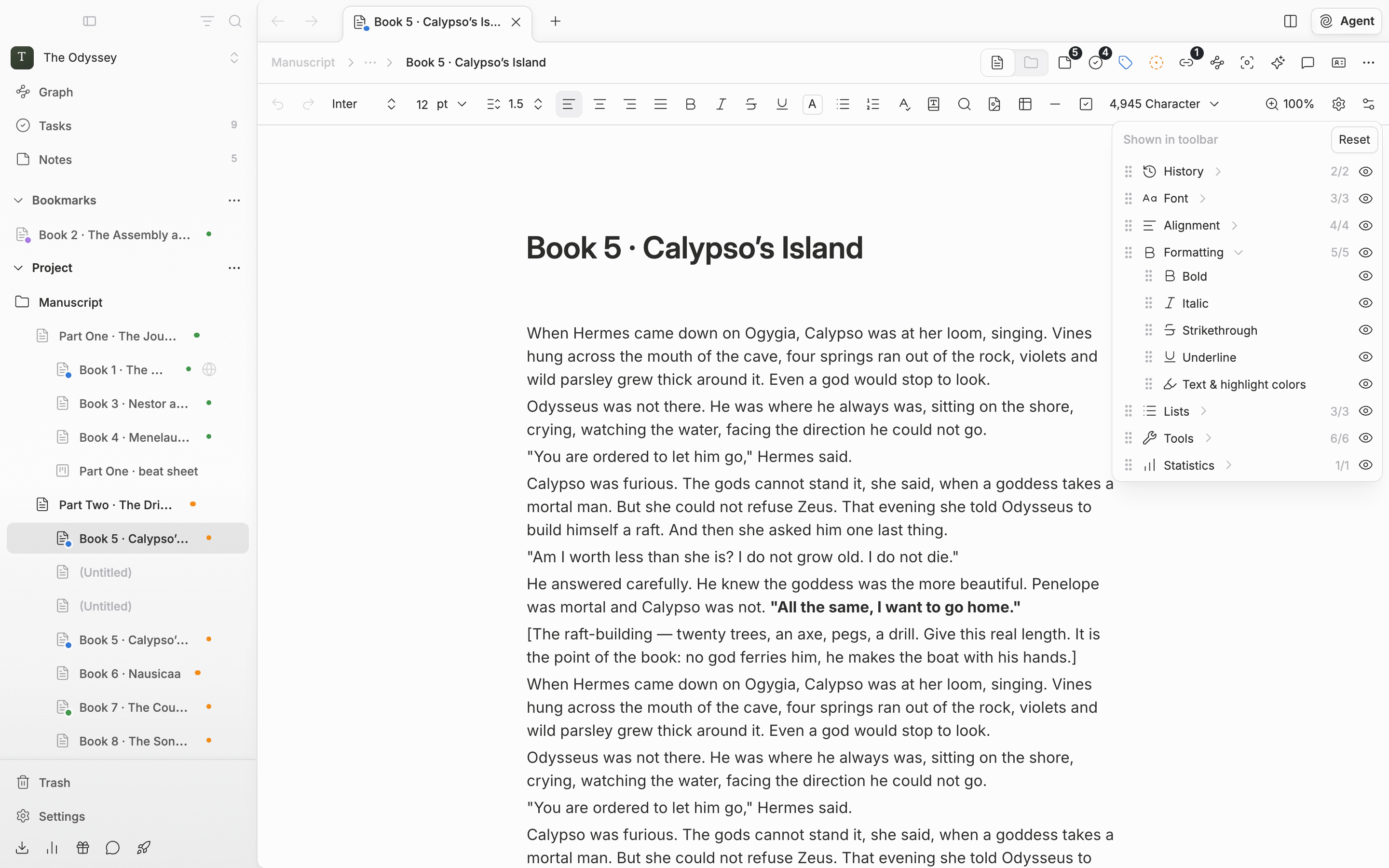
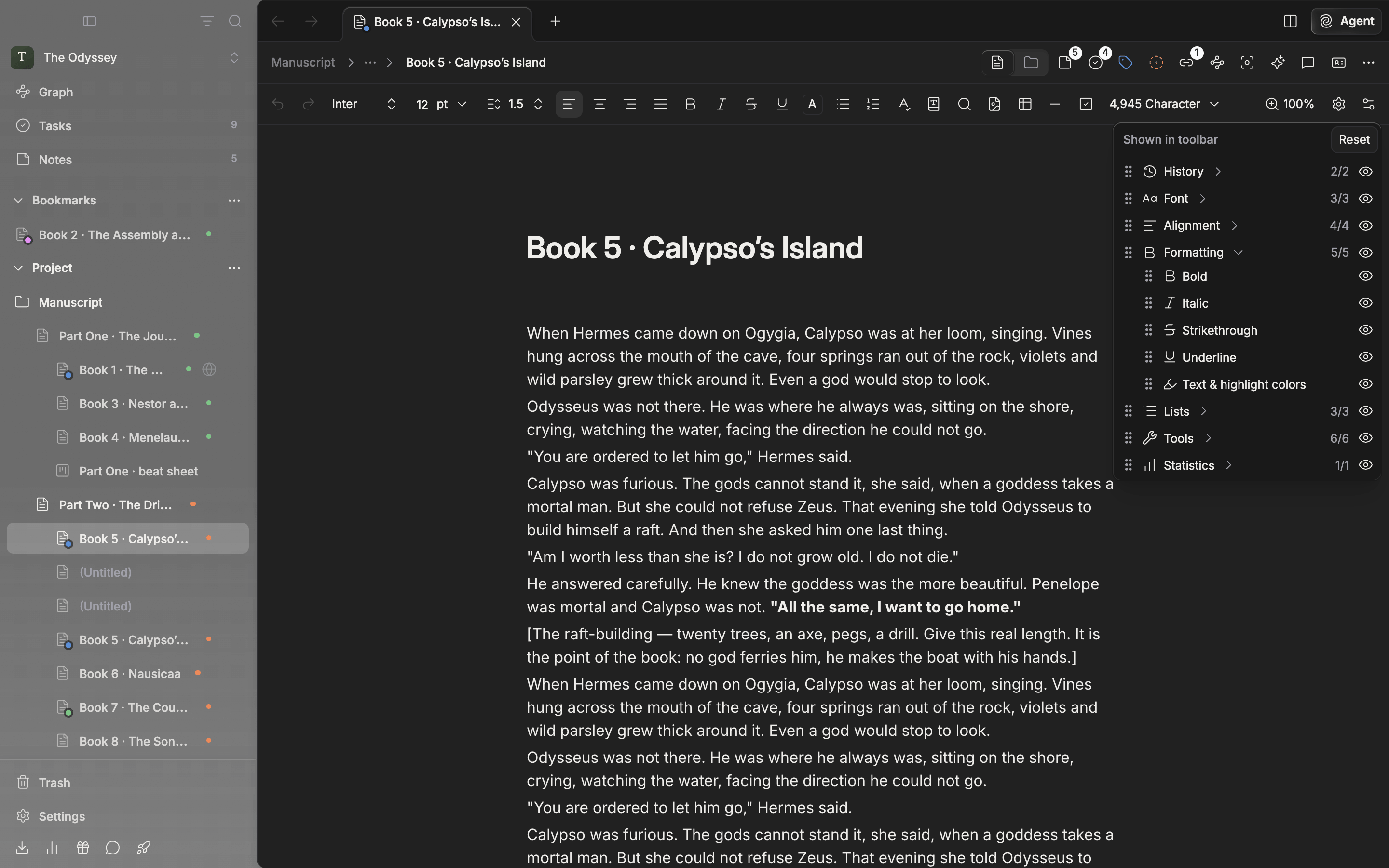
The Customize Toolbar popover. Fold groups open and closed as you turn buttons off and on.
Editing straight from the toolbar
Hold a toolbar button down for a moment and drag, and the order changes in place. It moves left and right only, and a short press works as usual, so nothing breaks your flow. You can move a button across a group boundary too. Right-click and you get Hide button and Reset. A hidden button keeps its place. Turn it back on and it returns near where it was. When an update adds a new button, it shows up turned on beside the other buttons in its group, even on a toolbar whose layout you have already changed.Choosing header buttons
The buttons at the right of the header work the same way. Press and hold to drag them into order, and right-click for Hide button. The whole list is visible if you go into Customize from More at the far right of the header. The items you can place in a document header are Notes, Tasks, Label, Status, Backlinks, Relationship Graph, AI Review, Comments, Export, Document history, Focus mode, Share link, and View Toggle. Export, Document history, and Share link are hidden at first, so turn them on if you print manuscripts often. Press a hidden row in the Customize list and Notes, Comments, Relationship Graph, AI Review, Document history, and Focus mode open on the spot. The ones that unfold from the button’s own position, like Label and Status, tell you “Show the button in the header to use this feature”. Header settings are remembered per file type. A layout set on a document does not carry over to sheets or canvases, and Reset reaches only the type you are looking at.Toolbar and header layouts are stored on the device you use. On another device, that device’s layout applies.