

Opening a new chat
Press + (tooltip New chat) at the top right of the agent panel and one more empty conversation appears. PressingCmd/Ctrl + T with the cursor in the panel does the same. This opens a conversation, not an editor tab.
A newly opened conversation is still a draft. It stays as a real conversation only once you send the first message, and the title is attached automatically at that point. There is no place to rename it yourself.
To keep what you have exchanged and only change branches, choose Fork chat from Message actions (…) on an assistant reply. A new conversation carrying everything up to that reply opens, and the original stays.
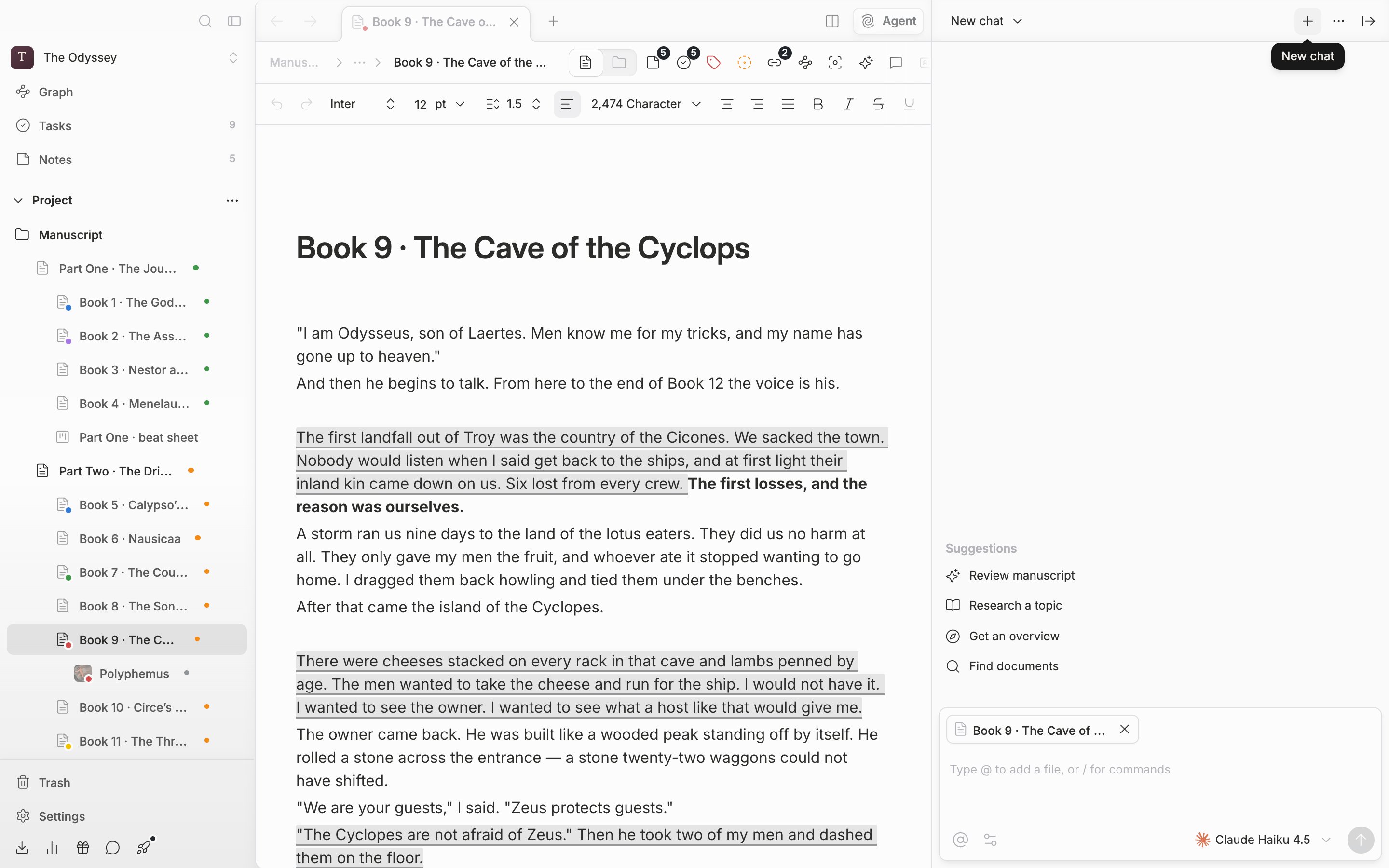
The + at the right of the header opens one more empty conversation.
Recovering one from Recent chats
Press the conversation name at the left of the header and the Recent chats list opens. If no title has been attached yet, that spot reads New chat. The list is grouped into Today, Yesterday, and earlier dates. The Search field at the top only scans titles that have already been loaded, so for an older conversation, scroll the list to the bottom to fetch more first and then look for it. Put the cursor on an item and Delete appears. It is deleted right away, with no confirmation dialog. The list shows only conversations from the project you have open.Closing conversations you have open
The screen shows only the one conversation you are looking at, but pensiv remembers the conversations you have open, project by project. PressCmd/Ctrl + W and the current conversation closes and you move to the one beside it. Close the last one and the whole panel closes.
Closing does not delete a conversation; it stays in Recent chats. Quit and reopen the app and the conversations you had open come back, and drafts with half-written text in them come back too. Empty drafts are cleared away.